Microsoft Word Spell Check Not Working? Follow These Steps
I had a client recently who sent me a Microsoft Word document that wouldn’t spell check. She even included typos, but Word said everything was fine! It obviously wasn’t.
How to Fix Spell Check
If Microsoft Word won’t spell check your document, whether you’re on a PC or a Mac, the fix is simple.
Fixing Word Spell Check on PC
- Go to the Review tab
- Select Language
- Click Set Language.
- In the Language dialog box, make sure the correct language is selected.
- Verify that the check box “Do not check spelling or grammar” is UNCHECKED.
- Click OK.
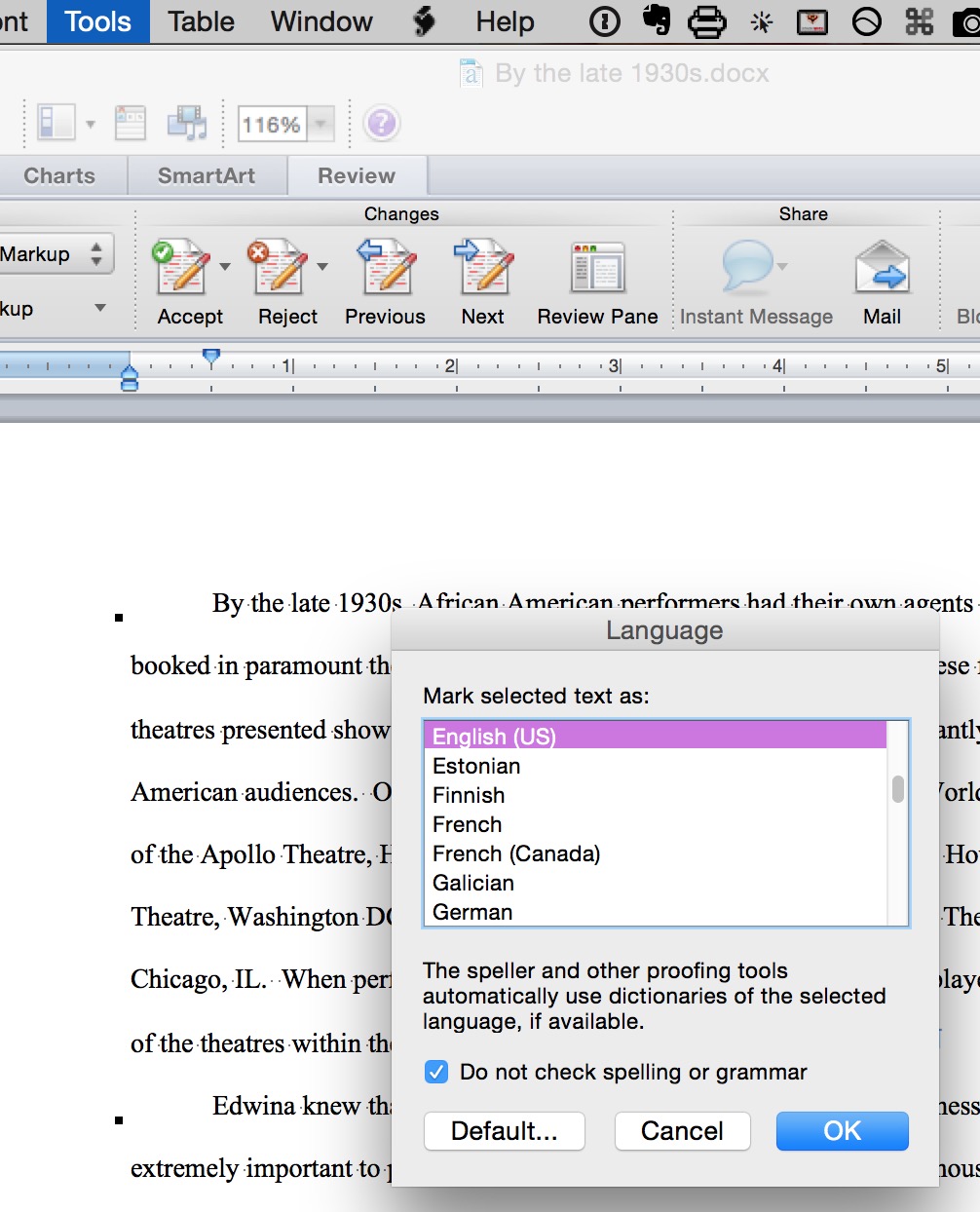
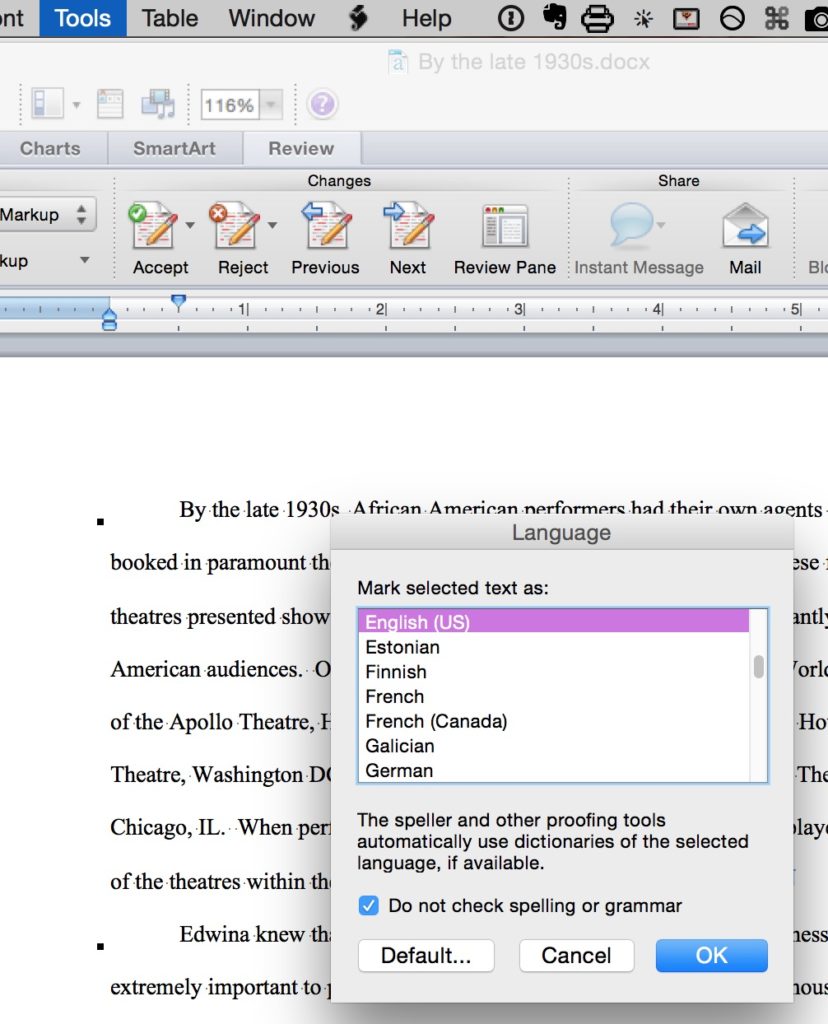
Fixing Word Spell Check Not Working On Mac
- Click on the Tools menu.
- Select Language.
- In the Language dialog box, make sure the correct language is selected.
- Verify that the check box “Do not check spelling or grammar” is UNCHECKED.
- Click OK.
That’s it. Now when you try to check your spelling again, it should work!
Want more MS Office support? Check out our Microsoft Office training courses, or click below to join our wonderful mentorship community!

Related Posts
[related_posts limit=”4″ image=”150″]