 One of the new features in both OSX 10.8 Mountain Lion and iOS6 is the Notification Center. Notifications alert you when something happens that you want to know about, like getting a new email message or an upcoming appointment on your calendar.
But the Notification Center can also distract you when you’re trying to get work done. You may find Notifications popping up about things you don’t care about, like someone taking their turn in Words with Friends. Or alerts come up so often they’re annoying, like Facebook posts on your wall.
The good news is that you can customize your notification center to completely control which apps “talk” to you, and how they do it.
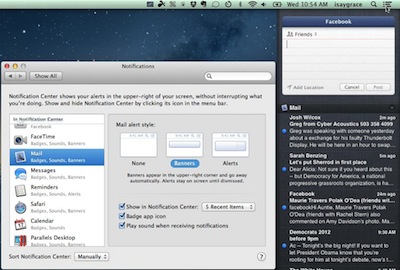
First, where IS the Notification Center? On your Mac, there’s a new button in the upper right corner next to Spotlight, with 3 little lines on it. Click on it, and a black pane will slide out with your Notifications listed. On your iPhone or iPad, slide your finger from the very top down to the bottom, and a windowpane will drop down.
If you have Facebook or Twitter integration set up, the top of the Pane will have a Status Update box so you don’t even have to go online to post. Below that, each of the applications will have a bar with their alerts below. To clear an app’s alerts, click the X on the right of the bar.
In addition to the Pane itself, Notifications take 3 additional forms: Badges, Banners, and Alerts.
- Badges are the little red circles you see on the Dock icons (Mac) or App Icons (iPhone/iPad). They count how many new items you have.
- Banners appear at the top of your screen when something happens, and then fade away after a few seconds. I use these for email, or when I want to know if someone took a turn in a game we’re playing.
- Alerts appear in the middle of your screen and stay there until you dismiss them. I like these for upcoming Calendar appointments and Reminders.
All four methods have their purposes, but using the wrong one at the wrong time will be more annoying than useful.
To adjust the Notification Center settings, open up System Preferences on your Mac or Settings on your iPhone/iPad. Look for a section labeled “Notifications.”
Notice that there are two sections: “In Notification Center” and “Not in Notification Center.” This refers to whether the alerts show up in the sliding panes. When you click on each application, you can turn on or off “Show in Notification Center.” You can specify how many active items will be listed.
In the Alert Style section, choose “None” if you don’t ever want to see updates from that program. Choose “Banners” if you want them to come and go. Choose “Alerts” to have the update appear in the middle of your screen until you manually tell it go to away.
Turn on Badge App Icon to get the red circle with the number of new items.
If you want each notification to make a noise (like having your phone ping when you get a text message), turn on the Sounds.
On your iPhone/iPad you also have an option to have the alert show up in your lock screen. It will go away when you slide to unlock.
Go through all these options for each of your applications. When you’re done, you’ll have a Notification system tailored to your own priorities.