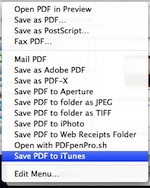
 If you have an iPhone or iPad, you’re going to love this technique. The new iBooks app allows you to view PDFs, but it’s not very easy to get them there. This tip will give you a new option when you save your PDFs, to save them directly into iTunes! This is an intermediate-level tip – not hard to do, but we boldly go where you’ve never gone before…
Create a new Finder window (I like to poke the little blue guy on the left of my Dock in the nose). Go to your Applications folder.
Right-click or Control-click on the iTunes application, and select “Make Alias.” A second copy of iTunes appears, but if you look at the icon, you can see a tiny black arrow, and the new name contains “alias” at the end. This alias is NOT another copy of iTunes, it’s a little pointer file that you can store anywhere to gain easy access to iTunes.
Now, open up a second Finder window (File menu > New Finder Window). Click on your Home User folder in the left bar – that’s the picture of the house with your name on it.
Open up the Library folder, then PDF Services. If you don’t have a PDF Services folder, you can create one, just be sure it’s named exactly this way.
Drag your alias file into the PDF Services folder.
The next step is to change the name. Click one time on the words “iTunes.app Alias” (yours might just say iTunes Alias), then take a deep breath and click on the words a second time. The name now goes into Edit mode. Type “Save PDF to iTunes.” This will become the new menu choice! When you’re done typing, press Return to accept the name.
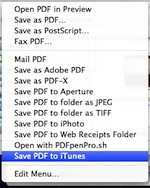
To see this in action, open any file you want to save in any program (even this browser window!), go to the File menu, and choose Print. In the lower left corner of the window there’s a PDF button. Click on it, and at the bottom of the list you now see “Save PDF to iTunes.” Choose it!
Now, open up your iTunes, and click on “Books” in the left bar. You’ll see your file on the list! When you sync your iPhone or iPad, go into the Books tab and make sure there’s a checkmark in front of the file. When you next go into iBooks on your device and tap PDF in its library, your file will be there!