 Problem: You copy and paste content into your document. Word maintains the original formatting and you have to manually reformat it to match your document.
Solution: Use Paste Options to bring in just the content, and leave the formatting behind.
Here are four options for smarter pasting in Microsoft Word.
1. Smart Tags
Immediately after pasting, a little yellow square with a clipboard appears in the lower right corner. Click on it, or press the CTRL key to open it. Inside are three squares.
The first, KEEP SOURCE FORMATTING, maintains all the font and paragraph formatting from the original you copied. The second, MERGE FORMATTING, keeps some of the paragraph formatting, but matches the font and size of the text around it. The third button, KEEP TEXT ONLY, abandons all the original formatting and adopts the format of the destination text. This is the one I use most often.
Sometimes, there’s a fourth button, USE DESTINATION STYLES. If you have styles defined in both documents, like Heading 1, but they’re defined differently, the pasted content takes on the style definition of the target document, but the rest of the original formatting is maintained.
2. The Paste Button
The first button on the Home ribbon is Paste. It has two halves. The top half does a standard Paste. The bottom half gives the same options as the Smart Tag.
3. Paste Formatting Only
Here’s a neat trick that allows you to duplicate just the formatting from the original source, without pasting the content.
Copy the content from the original source, highlight the target text in the active document, and press CTRL-SHIFT-V. This pastes the appearance, but not the text.
4. Setting the Paste Default
When you’re doing a lot of copying and pasting between documents, you usually need one of these Paste Options exclusively. Instead of changing the setting every time you paste, set the default.
On either the Smart Tag or the Paste button drop-down, choose SET DEFAULT PASTE. This opens Word’s ADVANCED OPTIONS, in the CUT, COPY, AND PASTE section. Here you can define your default format for when you Paste or CTRL-V, and refine other behaviors.
You can even set different defaults for pasting within your document, between Word documents, or from other applications. There are additional options in this window to fine-tune the behaviors to your specific needs.
Buy the Book
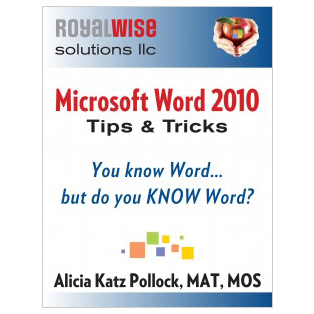 For the complete collection of time-saving tips and tricks, buy my book, Microsoft Word 2010 Tips & Tricks. Available in eBook, iBook, Multi-touch, and paperback versions.