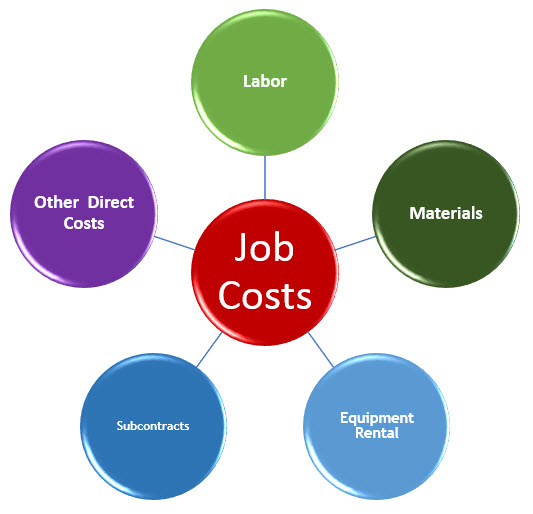
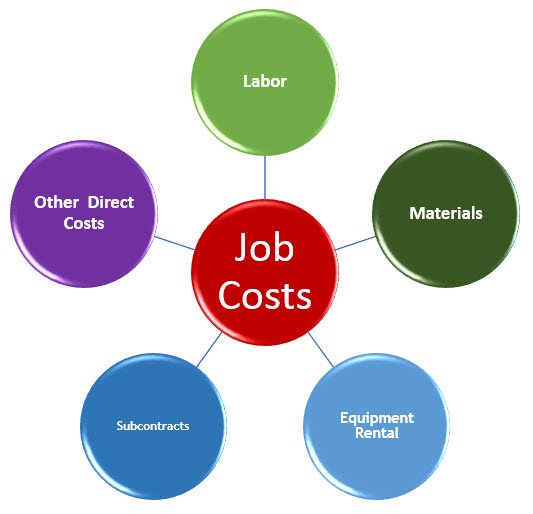
 QuickBooks has a powerful Job Costing feature that allows you to compare the income you made from a job to the expenses you incurred to provide the product or service. It allows to you see if a project was profitable or not.
If you’re a contractor or other professional who really wants to know if you’re making any money on the jobs you do, Job Costing is essential, especially if your job expenses include payroll. Sometimes you may feel like you made a bunch of money, but not realize that your labor costs were so high that you barely made a profit!
If you’re using Intuit Payroll through QuickBooks, and using Timesheets to track Employee Hours, applying those hours to a Customer: Job is automatic, and Job Costing reports show your profit margin.
But if you’re like most small businesses, you use an outside payroll service such as ADP, your accountant process your payroll, or you just write checks yourself. In these scenarios, your payroll expenses don’t show up on your Profit & Loss report, even if you assign them to Customer:Jobs. You have to use a workaround!
Job Costing in QuickBooks Workaround
Create Two New Accounts in Your Chart of Accounts
- Payroll Service Clearing, a Bank account
- Payroll Job Costs, an Expense account
Create Items for your Estimates and Invoices
- It must be a 2-sided service item (check the box that says the work is purchased or performed by a subcontractor)
- It doesn’t matter what you put in the Sales section, since it won’t be used for that.
- In the Purchases section:
- Cost – enter full payroll cost, including wages, taxes & benefits
- Account – use Payroll Job Costs
Set Up Your Employees
Now, let’s look at your staff. Each person should be created either as a Vendor or an Other Name, instead of an Employee. If you already have them in as employees, make a new Other Name, with a slight variation (no two names can be exactly the same). You’ll use this new account moving into the future.
Track Employee Hours
To track the hours, use the Timesheet for each of the new Vendors/Other Names, with each entry applied to a Customer:Job. Don’t check Billable unless you’re passing on costs for the customer to pay.
Write a Check
Once the hours are in, write a check. It will have a $0 dollar amount. The purpose is simply to move the cost from an Expense to a trackable cost.
- Use Payroll Service Clearing as the Bank at the very top.
- Enter Employee’s Vender/Other name.
- Use the “Add Time/Costs” button to add time charges to the check (you may also get a popup asking if you want to add items; say yes). They will appear on the Items tab at the bottom.
- Switch to the Expenses tab.
- Enter the Account Payroll Job Costs.
- Enter a negative dollar amount to zero out cost from Items tab.
That’s it!
To see this technique in action, watch this video from the Sleeter Group.