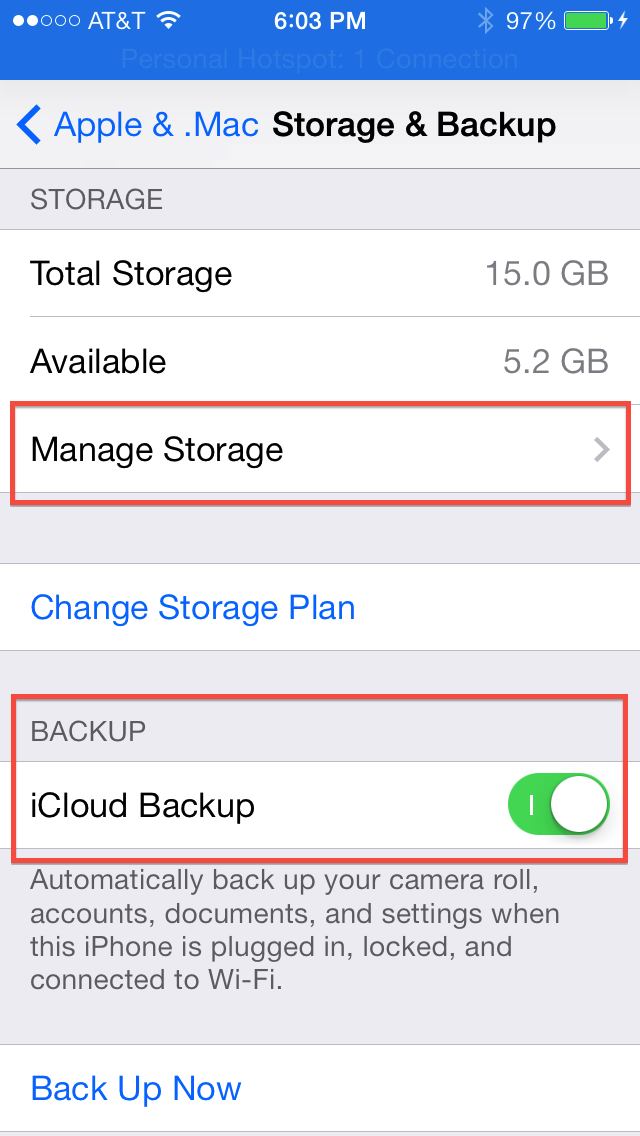
 When you create an iCloud account, you receive 5GB of space that’s used to synchronize your Mail, Contacts, Calendar, and store documents created by Apple applications like Pages.
Another iCloud feature is automatic backups. This feature is OFF by default; if you turn it on, your iPhone or iPad will send daily backups to iCloud. This is handy when you get a new phone, or have to restore your device after a major issue. You can just redownload your content & settings, and get back to living life.
When iCloud first came out, Apple raised the default 5GB of space to 20GB for one year for existing MobileMe subscribers. Many of us went way over 5GB, by not deleting our pictures off the Camera Roll, or having several devices back up to the same iCloud Apple ID.
Now that the year’s up, Apple has dropped our storage back down to 5GB, although you can pony up an extra $20 per year for 15GB, and larger storage options are also available.
But if you don’t want to pay more, here’s how to choose what to back up and what not to.
Camera Roll
First, take a look at your Camera Roll. If you have been using PhotoStream, or if you never sync your iPhone to your computer, you’ve probably amassed hundreds of pictures taking up 1GB or more. Import those images into your computer’s iPhoto, and then you can delete them. Or, just delete the bad ones (Photos app > Camera Roll > Select > Tap the bad pictures > Trash Can). This will save space both on your iPhone/iPad, AND in your backup.
Storage
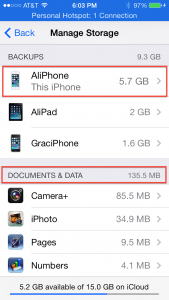
Next, go to Settings > iCloud and scroll down to Storage and Backup. Tap on Manage Storage.
At the bottom is a list called Documents and Data. Be wary of deleting anything from here! Listed are all the apps you have that are storing content on your iPhone or iPad. Note that some of them store a lot, but some hardly at all. These files are your pictures, your game scores, files you’ve created, and data the apps need. If you delete from here, this content will be gone!
But if you really need extra space on your device, and there is an app or game that you don’t care about, you can delete those files by tapping on it. In the upper right corner, tap Edit. Tap Delete All to remove the data from your device and the backup set.
Backups
Last, go to Settings > iCloud > Storage and Backup (scroll down to see it).
iCloud Backup vs. Backing Up to Your Computer
If iCloud Backup is OFF, I recommend turning it on. This online backup has saved my bacon more than once.
If iCloud Backup is off, you have to plug your iPhone or iPad into your computer to back it up. My experience is that very few people do this.
This backup procedure involves going into iTunes, clicking on your device (either in the upper right corner, or in the sidebar if you have it turned on), and going to summary. I still do this occasionally, too, so that I have my own backup on my Mac. Note that there is a setting further down in the OPTIONS that will allow your device to back up to your computer automatically over wireless, which I also have checked on.
Setting up your iPad/iPhone this way, and turning off iCloud Backup, will obviously keep you under that 5GB limit, but to restore your device, or when you get a new one, you’ll have to plug back in to your computer. Plus, your backup will only be as recent as the last time you bothered to do it.
Removing Apps from Your iCloud Backup
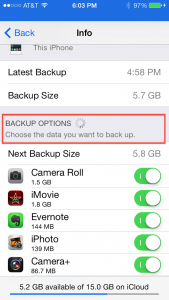
Tap on Manage Storage.
At the top you’ll see a list of iPads and iPhones that have backups on iCloud. These show up when you use the same AppleID on multiple devices. If you see a device that you no longer own, tap on it and Delete Backup.
Next, tap on your device, the one marked “This iPhone” or “This iPad.” Here there is a section labeled BACKUP OPTIONS. Tap on show all apps.
If there is content you want on your device, but you don’t care about losing in case of device failure or you won’t want to transfer to a new one down the road, you can turn off these apps. Their data will be removed from the backup file set and from your iCloud backup.
This last procedure is the best way to keep your backups small and reduce the amount of space required in your 5GB iCloud. Myself, though, I sprung for the $20/year so that my iPhone and iPad will always have what I need, now and into the future.