Days
Hours
Minutes
Seconds

December 2, 2026

FEATURED QUICKBOOKS TRAINING

Master 1099s in QuickBooks Online

Simplify your year-end reporting with expert-led training from Alicia Katz Pollock. Learn practical 1099 preparation and filing workflows while earning 2 CPE credits.

How to Insert a Line in Word (4 Creative Ways)

Use Auto Format for Horizontal Lines in Microsoft Word

Table of Contents

For more helpful content like this sent directly to your inbox, sign up here.

  • This field is for validation purposes and should be left unchanged.

How to Insert a Line in Word


One of my tricks that I teach in my Microsoft Office training with quite the “wow factor” is inserting artistic lines into my documents. To insert a horizontal line (also called a “horizontal rule”), here are four creative ways to do it.

The “normal” way is to go up to the Borders button in the Paragraph group and choose “Horizontal Line.” If you want fancier lines, try these tricks:


1. Use Auto Format to Insert a Line in Word

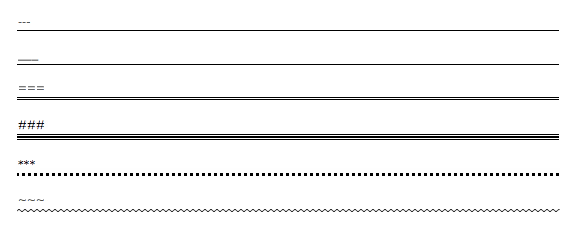
On a blank line, type these 3 characters in a row and press ENTER. A line appears across the page.
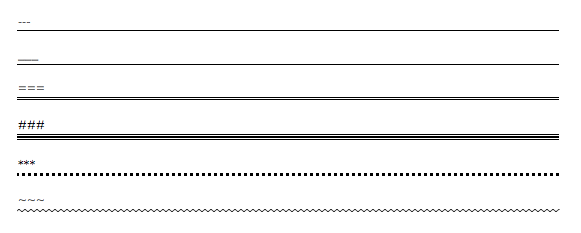
Use Auto Format for Horizontal Lines in Microsoft Word

If you need to remove one, simply Backspace or Delete as normal.


2. Use the Clip Art Gallery

Word’s built-in Clip Art Gallery contains dozens of images that act as lines. Open up INSERT > CLIP ART, and search for LINES. For more choices, when you have an Internet connection, INCLUDE OFFICE.COM CONTENT. (Note: these commands may be different depending on what version of Word you’re using).

Insert any of the images. If it doesn’t extend across the page, use any of the RESIZE HANDLES to make it larger — but keep in mind that these are images, so if your line image is extended longer than its original dimension, it may become fuzzy.

Use any of the features on the PICTURE TOOLS > FORMAT Tab to change the color, shadow, style, and effects of the line image.

To remove a Shape, click on it, then press DELETE on your keyboard.

 

microsoft office training
Want more Microsoft Office training and tips? Click here!


3. Add Bottom Borders

This technique works best on Headings.

Bottom Borders in Microsoft WordClick in the paragraph of text you want a line under. Click on the HOME Tab > BORDERS button — Bottom Border is usually the default. This places a line across the page, underlining not just the text but the rest of the row, too.

Click on BORDERS AND SHADING, the last option on the drop-down list, to refine the weight and color of this line.

When you press Enter at the end of the paragraph, this border may extend down to the next row, an effect you probably don’t want.

To remove a bottom border, use the CLEAR FORMATTING button on the HOME ribbon, and the border returns to the desired text.

4. Use Shapes to Insert a Line in Word

Click on the INSERT RIBBON > SHAPES button. On the drop-down gallery, the second section has a series of lines. Some have arrowheads; others have bends and angles. Pick one.

Click where the line begins, and drag to where the line ends.

To keep the line straight, hold down the SHIFT key while dragging.

Upon letting go, each line has a resize handle at the beginning and end to change the dimension. Lines that have curves and bends also have adjustment diamonds to refine the angles.
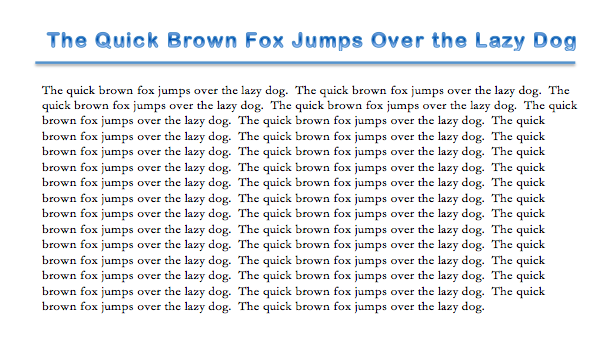
Using Shapes to Make Lines in WordUse the DRAWING TOOLS > FORMAT ribbon to stylize the line’s color and special effects.

To remove a Shape, click on it, then press DELETE on your keyboard.


Did you love this trick? We have more!

Alicia wrote the book on Word…literally!
Microsoft Word 2010 Tips & TricksI love all the fun and cool things that Microsoft Word can do, and I’ve spent 30 years playing with it. My complete collection of time-saving tips and tricks is called…wait for it…Microsoft Word Tips & Tricks.

The title says “Word 2010,” but the tools are the same in all versions, PC and Mac.

Buy the book in convenient formats including eBook, Kindle, and paperback versions. It’s only $15!


Check out Alicia’s in-depth and detailed Microsoft Word, Excel, and PowerPoint courses here.

For more helpful content like this sent directly to your inbox, sign up here.

  • This field is for validation purposes and should be left unchanged.

Picture of Alicia Katz Pollock
Alicia Katz Pollock
Recently named the 2026 Top ProAdvisor Educator by Insightful Accountant, Alicia is a nationally recognized QuickBooks Online expert with a Master’s in Teaching and decades of business consulting experience. Known for her patience, commitment, and approachable teaching style, she makes QuickBooks easier to understand for small business owners and accounting professionals alike, helping them build the skills they need to manage their finances with clarity and ease.
Don't forget to share this post.
Related Articles
Episode 154 | QuickBooks Live is Dead, Long Live Intuit Experts | Royalwise
QuickBooks
Alicia Katz Pollock
QuickBooks Live is Dead, Long Live Intuit Experts – Podcast

Podcast Episode Overview QuickBooks Live is officially retired, and Alicia sits down with Dan DeLong and Matthew Fulton to unpack what replaces it: Intuit Experts, a narrower set of services built directly into QBO Simple Start and above. They walk through the new Books Check-In, Smart Expert Categorization, and Expert Books Upkeep offerings, how the accountant-attached toggle works, and why

Read More »
Episode 153 | Karla Uribe, Intuit’s Director of Product Management, IAS | Royalwise
QuickBooks
Alicia Katz Pollock
Karla Uribe, Intuit’s Director of Product Management, IAS – Podcast

Podcast Episode Overview Alicia sits down with Karla Uribe, Intuit’s Director of Product Management for the Accountant Segment, to unpack the vision behind Intuit Accountant Suite. They dig into the new Books Close and Client Insights features, how pricing and the ProPartner tiers will work, and what migrating from QBOA actually looks like in practice. Karla also addresses the AI

Read More »
Episode 152 | Now You Know: In the Know July 2026 Recap | Royalwise
QuickBooks
Alicia Katz Pollock
Now You Know: In the Know July 2026 Recap – Podcast

Podcast Episode Overview Alicia and Matthew break down Intuit’s July “In the Know” session, covering 175 behind-the-scenes fixes to bank matching, reports, and load times, plus a first look at the new unified inbox coming to QuickBooks Online this August. They also dig into the new Intuit Experts toggle that determines whether Intuit can market services directly to your clients,

Read More »