For more helpful content like this sent directly to your inbox, sign up here.
How to Insert a Line in Word
One of my tricks that I teach in my Microsoft Office training with quite the “wow factor” is inserting artistic lines into my documents. To insert a horizontal line (also called a “horizontal rule”), here are four creative ways to do it.
The “normal” way is to go up to the Borders button in the Paragraph group and choose “Horizontal Line.” If you want fancier lines, try these tricks:
1. Use Auto Format to Insert a Line in Word
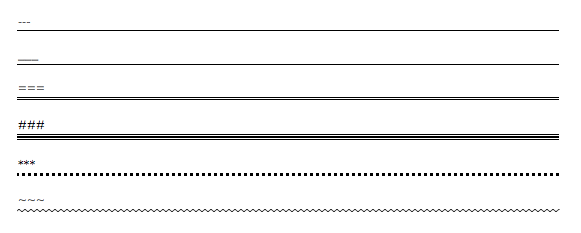
On a blank line, type these 3 characters in a row and press ENTER. A line appears across the page.
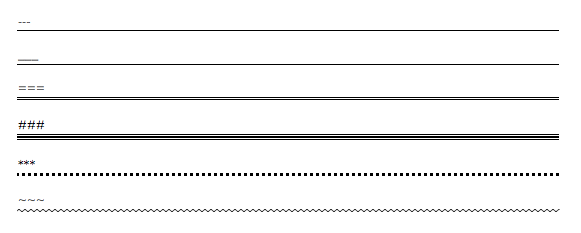
If you need to remove one, simply Backspace or Delete as normal.
2. Use the Clip Art Gallery
Word’s built-in Clip Art Gallery contains dozens of images that act as lines. Open up INSERT > CLIP ART, and search for LINES. For more choices, when you have an Internet connection, INCLUDE OFFICE.COM CONTENT. (Note: these commands may be different depending on what version of Word you’re using).
Insert any of the images. If it doesn’t extend across the page, use any of the RESIZE HANDLES to make it larger — but keep in mind that these are images, so if your line image is extended longer than its original dimension, it may become fuzzy.
Use any of the features on the PICTURE TOOLS > FORMAT Tab to change the color, shadow, style, and effects of the line image.
To remove a Shape, click on it, then press DELETE on your keyboard.

3. Add Bottom Borders
This technique works best on Headings.
 Click in the paragraph of text you want a line under. Click on the HOME Tab > BORDERS button — Bottom Border is usually the default. This places a line across the page, underlining not just the text but the rest of the row, too.
Click on BORDERS AND SHADING, the last option on the drop-down list, to refine the weight and color of this line.
When you press Enter at the end of the paragraph, this border may extend down to the next row, an effect you probably don’t want.
To remove a bottom border, use the CLEAR FORMATTING button on the HOME ribbon, and the border returns to the desired text.
4. Use Shapes to Insert a Line in Word
Click on the INSERT RIBBON > SHAPES button. On the drop-down gallery, the second section has a series of lines. Some have arrowheads; others have bends and angles. Pick one.
Click where the line begins, and drag to where the line ends.
To keep the line straight, hold down the SHIFT key while dragging.
Upon letting go, each line has a resize handle at the beginning and end to change the dimension. Lines that have curves and bends also have adjustment diamonds to refine the angles.
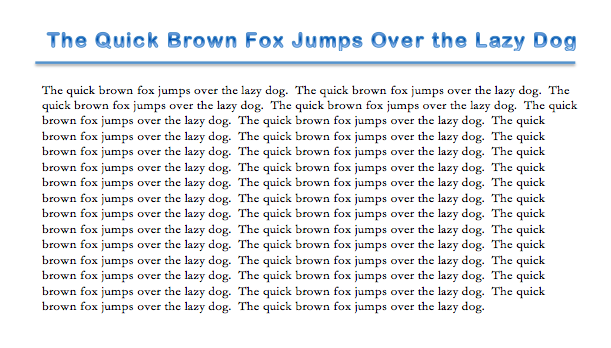 Use the DRAWING TOOLS > FORMAT ribbon to stylize the line’s color and special effects.
To remove a Shape, click on it, then press DELETE on your keyboard.
Did you love this trick? We have more!
Alicia wrote the book on Word…literally!
 I love all the fun and cool things that Microsoft Word can do, and I’ve spent 30 years playing with it. My complete collection of time-saving tips and tricks is called…wait for it…Microsoft Word Tips & Tricks.
The title says “Word 2010,” but the tools are the same in all versions, PC and Mac.
Buy the book in convenient formats including eBook, Kindle, and paperback versions. It’s only $15!
Check out Alicia’s in-depth and detailed Microsoft Word, Excel, and PowerPoint courses here.
For more helpful content like this sent directly to your inbox, sign up here.