How to Copy Formatting in Word
Once you’ve formatted your text, you may want to use that appearance later. You don’t need to go to each instance of text and apply the same font, size, color, and effects over and over.
We already covered how to remove formatting in Word, now let’s explore 3 ways you can copy the formatting in Microsoft Word.
Copy Formatting in MS Word Option #1 – Save as a Style
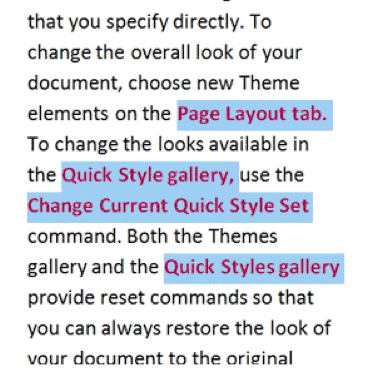
Styles allow you to apply a set of character and paragraph formatting to text in one step. They also allow you to modify one instance of that style and have the change cascade down throughout the document to the rest.
To save formatted text as a Style, right-click on it, highlight STYLE, and choose SAVE SELECTION AS A NEW QUICK STYLE. Give the Style a name. Your new Style now appears in the Styles gallery on the Home Tab.
Select the next text and click your new button in the GALLERY to instantly apply all the same formats.
To change the Style, make the modification to the text, right-click on the STYLE in the gallery, and choose UPDATE [NAME] TO MATCH SELECTION. All the samples of that Style in the document instantly take on the modification.
Copy Microsoft Word Formatting Option #2 – Use the Format Painter
The Format Painter applies an entire collection of custom formats with just one click.
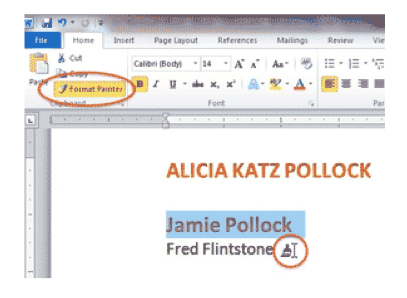
Click in the text that has the desired format (this is the hardest step to remember). On the HOME ribbon, click on the FORMAT PAINTER button on the left side in the CLIPBOARD group. Notice that the cursor now has a paintbrush attached to it.
Drag across the next text. It instantly takes on all the formatting from the first
If there are several places that need that formatting, don’t perform each formatting duplication individually. The Format Painter can apply the settings to several items, much like a painter dipping her brush into a color and then dabbing the canvas repeatedly.
Click on the formatted text; this time, instead of clicking one time on the FORMAT PAINTER button, click on it TWICE. The cursor has the same brush, but it also now has a + on it. Drag across as many locations as needed.
Be careful when in Format Painter mode—the special effects apply to any object clicked on.
When done duplicating the formatting, either click on the FORMAT PAINTER button again to turn it off, or simply press the ESC key in the upper left corner of the keyboard.
Use Keyboard Shortcuts to Copy Microsoft Word Formatting (Option #3)
Click in text that has the formatting to replicate, and press CTRL-SHIFT-C. It’ll copy the formatting, but not the text itself.
Highlight the target text and press CTRL-SHIFT-V to paste the formatting.
More Microsoft Office Training Resources
Join our awesome MS Office Membership Community for unlimited access to all of our Microsoft Office training classes!