Creating a Cover Page in Microsoft Word

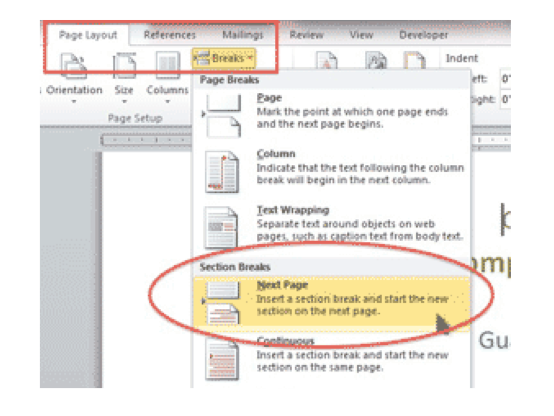
Insert a Next Page Section Break

Table of Contents

The title on a cover page is traditionally located about 1/3 to halfway down the page. Have you found yourself pressing Enter repeatedly to get there? Don’t! Instead, follow these steps to center the page vertically, from top to bottom.

Formatting a Cover Page in Word

1. Insert a Next Page Section Break

Click the cursor at the beginning of the text to appear on page 2. Go to the Page Layout?Breaks and click on NEXT PAGE in the SECTION BREAKS area.

Click back on the cover page.
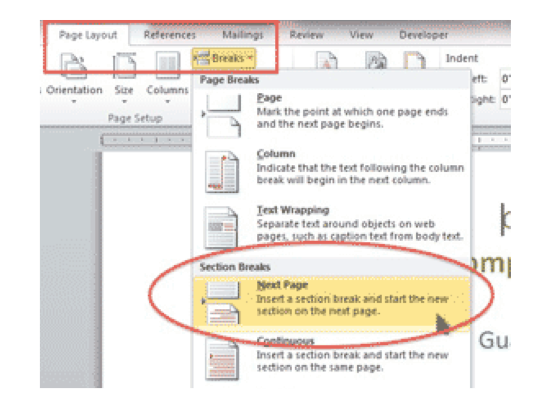
Insert a Next Page Section Break

2. Center the Page Vertically

Go to the PAGE LAYOUT ribbon and click on the LAUNCHER BUTTON in the bottom right corner of the PAGE SETUP GROUP.

Change VERTICAL ALIGNMENT: to either Center or Justified.
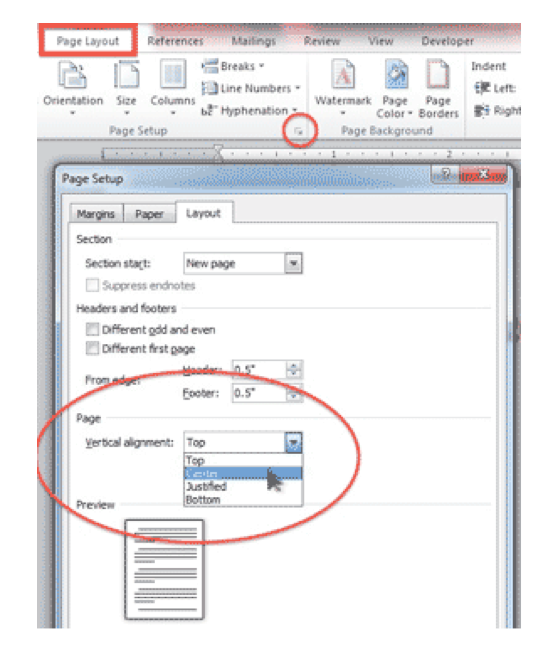
Center the Page Vertically

Center drops the text to the middle of the page from top to bottom, as shown in the first image. Justified spreads out the lines so that they are evenly spaced.

Justified

Buy the Book

Microsoft Word 2010 Tips & TricksFor the complete collection of time-saving tips and tricks, buy my book, Microsoft Word 2010 Tips & Tricks. Available in eBook, iBook, Multi-touch, and paperback versions.



Picture of Alicia Katz Pollock
Alicia Katz Pollock
Recently named one of America's Top 50 Women in Accounting, Alicia is a leading expert in QuickBooks Online training with a Masters in Teaching and decades of business consulting. She offers a range of tailored resources from self-paced courses to personalized coaching. Known for her patience and commitment, Alicia simplifies QuickBooks for clients, helping them achieve their financial management goals with ease.
Picture of Alicia Katz Pollock
Alicia Katz Pollock
Recently named one of America's Top 50 Women in Accounting, Alicia is a leading expert in QuickBooks Online training with a Masters in Teaching and decades of business consulting. She offers a range of tailored resources from self-paced courses to personalized coaching. Known for her patience and commitment, Alicia simplifies QuickBooks for clients, helping them achieve their financial management goals with ease.
Don't forget to share this post.
Related Articles
QuickBooks Online Training Blog | Header Image | Royalwise
QuickBooks
Alicia Katz Pollock
The QuickBooks Online Training Revolution Has Begun

(Watch the video above to hear the full story straight about QuickBooks Online Training from Alicia Katz Pollock.) The accounting industry is undergoing a seismic shift. What used to be a solo bookkeeper’s job is now handled by entire departments inside CAS practices and tax firms. The pressure is on for staff at all levels to really know what they’re doing in

Read More »
QuickBooks Online Reports
QuickBooks
Alicia Katz Pollock
Unlocking the Power of QuickBooks Online Reports

Unlocking the Power of QuickBooks Online Reports: A Deep Dive for Bookkeepers and Business Owners Let’s face it, we all love those satisfying “cha-chings” as payments hit our bank accounts. But as bookkeepers and business owners, we know that the true story of our financial health lies deeper, within the reports nestled inside QuickBooks Online (QBO). It’s easy to get

Read More »
Year-end Cleanup in QuickBooks Online
QuickBooks
Payden Miller
Year-End Cleanup in QuickBooks Online: Your Guide to a Sparkling Clean Start!

Hey everyone, Alicia Katz Pollock here! As we gear up for tax season, I want to talk about one of my favorite topics: Year-end Cleanup in QuickBooks Online. Yes, I know, “cleanup” doesn’t usually spark joy, but trust me, a little QBO spring cleaning can make a world of difference for your peace of mind and, most importantly, for accurate

Read More »