3 Ways to Insert the Date in Microsoft Word Docs

Inserting the date with autofill

Table of Contents

If you need to insert the date in your documents, save time by using these shortcuts instead of typing.
Inserting the date with autofill

Insert As You Type

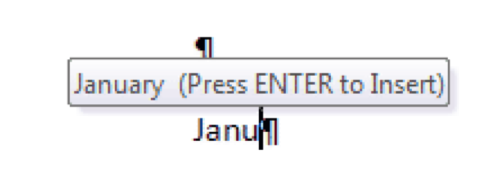
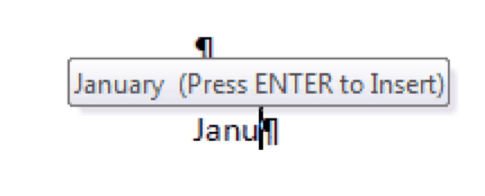
As you type the date in your document, Tooltips appear that predict what you’re going to type. Press Enter to accept the suggestion. For example, as you start typing “Janu”, Word suggests “January,” and you press Enter to insert it. If you keep typing the rest of the date, it may offer to autofill in the day and the year as well.
Inserting today's date and timeInsert Today’s Date and Time

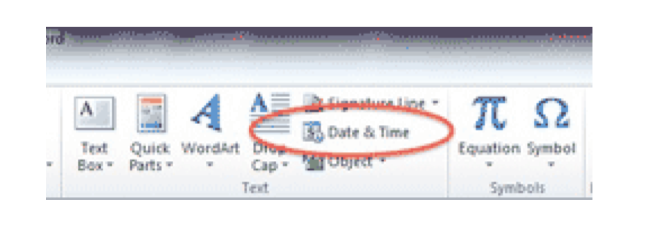
Click on the document where you want to put the date. Go to the INSERT RIBBON, and choose DATE AND TIME on the far right. Select how the date should look. To always use this style, click the SET AS DEFAULT button.
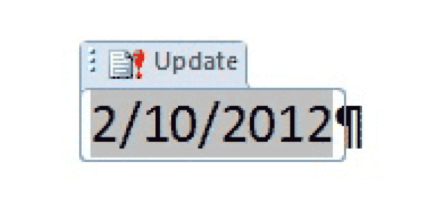
Insert the date with a keyboard shortcut

Use a Keyboard Shortcut

You can also insert the date with the keystroke ALT-SHIFT-D. This inserts the date as a field — click on it to see the field container. To change the format, use the instructions above to change the Default style, and reinsert the field. The field maintains the original date. Click on the UPDATE button to change it to today’s date.

Buy the Book
Microsoft Word 2010 Tips & TricksFor the complete collection of time-saving tips and tricks, buy my book, Microsoft Word 2010 Tips & Tricks. Available in eBook, iBook, Multi-touch, and paperback versions.


Picture of Alicia Katz Pollock
Alicia Katz Pollock
Recently named one of America's Top 50 Women in Accounting, Alicia is a leading expert in QuickBooks Online training with a Masters in Teaching and decades of business consulting. She offers a range of tailored resources from self-paced courses to personalized coaching. Known for her patience and commitment, Alicia simplifies QuickBooks for clients, helping them achieve their financial management goals with ease.
Picture of Alicia Katz Pollock
Alicia Katz Pollock
Recently named one of America's Top 50 Women in Accounting, Alicia is a leading expert in QuickBooks Online training with a Masters in Teaching and decades of business consulting. She offers a range of tailored resources from self-paced courses to personalized coaching. Known for her patience and commitment, Alicia simplifies QuickBooks for clients, helping them achieve their financial management goals with ease.
Don't forget to share this post.
Related Articles
Chart of Accounts
QuickBooks
Alicia Katz Pollock
Chart of Accounts in QuickBooks Online | Unraveling the Mysteries

Hey everyone, let’s talk about something that’s often overlooked but absolutely crucial for a healthy financial life – your Chart of Accounts in QuickBooks Online (QBO). Whether you’re a seasoned bookkeeper, a small business owner wearing multiple hats, or just starting your entrepreneurial journey, understanding your Chart of Accounts (COA) is like having a clear roadmap to your business’ organizational

Read More »
Products, Services, & Inventory in QBO | Taming the Beast
QuickBooks
Alicia Katz Pollock
Products, Services, & Inventory in QBO | Taming the Beast

Let’s be honest, managing products, services, and inventory can feel like wrestling an octopus. You’ve got tentacles everywhere – invoices, bills, purchase orders, reports – and it’s easy to feel overwhelmed, especially if you’re a small business owner or bookkeeper juggling multiple tasks. But QuickBooks Online (QBO) can be a powerful ally in this fight, and understanding how to utilize

Read More »
Alicia Katz Pollock
News
Payden Miller
Notable Appearances

Notable Appearances by Alicia Katz Pollock As Royalwise continues to grow and touch more lives than ever, demand for Alicia Katz Pollock has grown as well. She has made a slew of notable appearances recently, and rather than create a separate blog post for each event, we’ve decided to create a running list of important showings by the QuickBooks Online

Read More »