How to Use Styles in Microsoft Word

Styles in Microsoft Word

Table of Contents

When applying the same character and paragraph formatting several times throughout a document, save dozens of repetitive steps by applying a Style instead. Word comes with dozens of pre-designed Style sets, and you can modify them or create new ones at any time.

Apply a Style

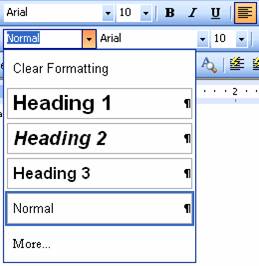
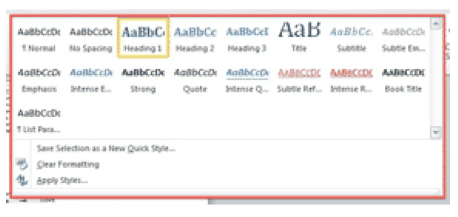
Select the text to stylize, then go to the HOME ribbon. On the right is a Style Gallery—click on the MORE DROP-DOWN button to see a list of character styles. This isn’t all of the styles available, but it’s a great start.

Pick the style, and the text changes accordingly. For example, choosing Heading 1 makes your text 14pt, bold, blue, with 24pt Space Before, Keep With Next, and Keep Lines Together. All that in one click!
Apply a Style in Microsoft Word

Modify an Existing Style

Once you’ve applied a Style throughout a document, modifying that Style updates all instances of it at the same time.

For example, if you change Heading 1 to centered and Page Break Before, all your Heading 1’s instantly jump to the top of a new page and become center aligned.

To trigger this cascading effect, make the changes to the text, then right-click on the STYLE in the Gallery. Choose UPDATE [STYLE] TO MATCH SELECTION.

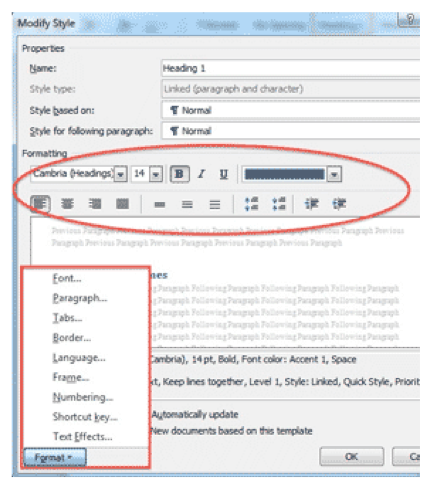
Alternatively, click on MODIFY… to go into a dialog box and make all the formatting changes there.

The FORMAT button in the bottom left corner allows you to modify the Font, Paragraph, Tabs, Borders, Numbering, Text Effects, and more.
Modify an Existing Style in Microsoft Word

Create a New Style

If you apply a series of character and paragraph formatting to text, and plan to use that appearance again, turn it into a new Style so that you can apply all the settings instantly in just one click.

Select the formatted text, right-click on it, choose STYLES off the shortcut menu, and then click SAVE SELECTION AS A NEW QUICK STYLE.

Give it a name, and the new Style appears in the Gallery for future use.
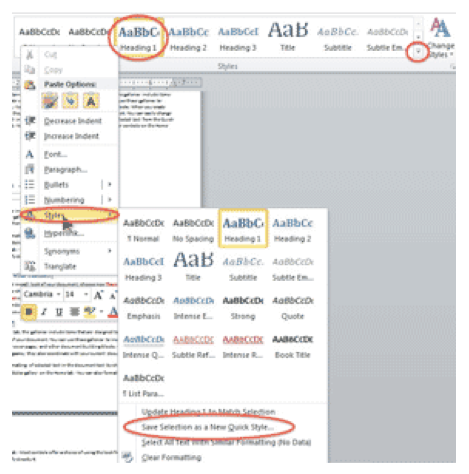
Create a New Style in Microsoft Word

Buy the Book

Microsoft Word 2010 Tips & TricksFor the complete collection of time-saving tips and tricks, buy my book, Microsoft Word 2010 Tips & Tricks. Available in eBook, iBook, Multi-touch, and paperback versions.


Picture of Alicia Katz Pollock
Alicia Katz Pollock
Recently named one of America's Top 50 Women in Accounting, Alicia is a leading expert in QuickBooks Online training with a Masters in Teaching and decades of business consulting. She offers a range of tailored resources from self-paced courses to personalized coaching. Known for her patience and commitment, Alicia simplifies QuickBooks for clients, helping them achieve their financial management goals with ease.
Picture of Alicia Katz Pollock
Alicia Katz Pollock
Recently named one of America's Top 50 Women in Accounting, Alicia is a leading expert in QuickBooks Online training with a Masters in Teaching and decades of business consulting. She offers a range of tailored resources from self-paced courses to personalized coaching. Known for her patience and commitment, Alicia simplifies QuickBooks for clients, helping them achieve their financial management goals with ease.
Don't forget to share this post.
Related Articles
1099s in QuickBooks Online
QuickBooks
Alicia Katz Pollock
Navigating 1099s in QuickBooks Online: Your Guide to Stress-Free Filing

Hey everyone, Alicia Katz Pollock from Royalwise.com here. It’s that time of year again – 1099 season! While this task can feel daunting, especially with ever-evolving regulations, QuickBooks Online (QBO) offers tools to help streamline the process. Intuit continues to revamp the 1099 filing process based on user feedback, making it even more efficient. This blog post will guide you

Read More »
How to Backup Your QuickBooks Online Data
QuickBooks
Alicia Katz Pollock
Baby Got Backups: Why and How to Backup Your QuickBooks Online Data

Hey everyone, Alicia Katz Pollock here from Royalwise.com! Today, I’m diving into a topic that often gets overlooked, but is absolutely crucial for any business using QuickBooks Online (QBO): how to backup your QuickBooks Online data. Even though your company file is stored in the cloud, relying solely on Intuit’s servers for protection leaves you vulnerable to accidental deletions, data

Read More »
Advanced Bookkeeping in QuickBooks Online
QuickBooks
Alicia Katz Pollock
Advanced Bookkeeping in QuickBooks Online: Moving Beyond the Basics

So, you’ve mastered the basics of QuickBooks Online (QBO). You can send invoices, categorize transactions, and run basic reports. That’s fantastic! But are you ready to take your skills to the next level with advanced bookkeeping in QuickBooks Online? This isn’t about clicking the right buttons; it’s about understanding the deeper bookkeeping principles and using QBO’s features creatively to get

Read More »