
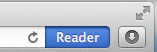
Do you get tired of all the “noise” on website these days? Between sidebars, headers, ads and callout boxes, it is hard to tell where the content is anymore. That is where Safari’s Reader button comes into play.
When you are on a page that has a distinct column of content, you will notice that the Reader button, found in the far right of the omnibox in Safari, will light up in bright blue.
Click this blue Reader button and Safari will bring up a beautiful and elegant content-only version of the page, just the title and body of the article. And if you float your cursor near the bottom of the page, you will see a control area appear that will allow you to make the font size bigger or smaller, share the page through email, and even send to the printer.

To exit Reader mode, click this X, or click on the blue button in the toolbar again.
 Next, Safari gives you many ways to catalog websites and keep them organized. In Mountain Lion, options for bookmarking, emailing, sending a text message, or posting to Facebook can now be found under the new Share button on the left side of the toolbar.
Most people are used to choosing Add Bookmark, then deciding whether to store the bookmark on the Bookmark Bar for sites you go to on a regular basis, in the Bookmark Menu for sites you want to remember but that you don’t need all the time, or on the graphically driven Top Sites area which is also a great place for those daily sites. But now we have an additional option, Add to Reading List.
 You can find the Reading List by clicking on the glasses on the far left of the bookmark bar. This feature is meant to be a place for you to temporarily keep track of the news articles of the day. It’s not for pages you want to keep stored away and organized, but things you come across during your busy day that you do not have time to read at that moment. It’s also great when you’re doing research or comparison shopping. Just add the webpage to your reading list, and later you can go back through and get caught up. Once read, the webpage will be removed from the Unread list, but will remain in the All list so you can find it later. When you’re completely finished with it, point at the article and an X will appear. Click the X in the corner and the article will be removed from the list.
As an added benefit, the Reading List saves a local copy of the webpage, then syncs this offline copy through iCloud to my iPad and iPhone so I can sit in my easy chair and read them later. This not only allows me to read them when I’m not connected to the Internet, using up my precious data plan when away from WiFi, but I now have a copy that will not disappear if the original website goes down, or if the online version of the webpage gets deleted or archived.
I love both of these Safari features and I am sure you will too.