How to Remove Backgrounds and Colors from Images in Microsoft Word

Remove the Background from an Image

Table of Contents

The graphics editing features in Microsoft Word have certainly come a long way. You no longer need Photoshop for some common picture editing. For example, Word’s Picture Tools can remove backgrounds and colors from images.

Remove the Background From an Image

This works best with uncluttered backgrounds and edges with contrast.

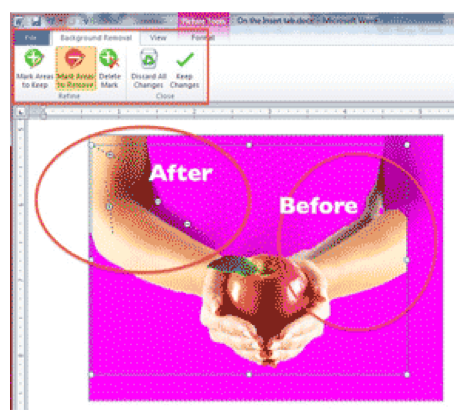
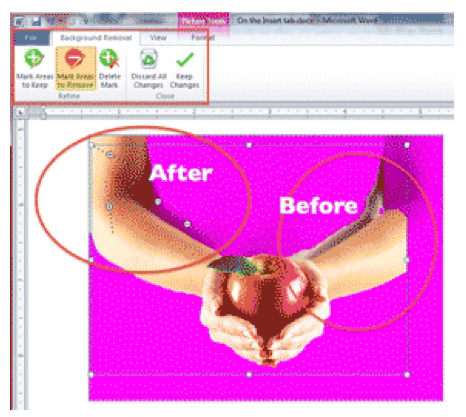
Click on your picture, then on the PICTURE TOOLS > FORMAT Tab. Click on the first button on the ribbon, REMOVE BACKGROUND, and two things happen: the picture sports bright pink coloring, and a new ribbon appears.

On the ribbon, MARK AREAS TO KEEP removes the pink knockout marks from areas you want to save.

Use MARK AREAS TO REMOVE to tell Word what to knock out.

Click on either of these buttons and click-and-drag across small segments of the photo to increase or decrease the pink area. Use relatively small lines so that Word can analyze the image to find clear boundaries.

If you make a mistake, click the DELETE MARK button and click on the + or — sign in the middle of your marks.

When the areas you want to remove are all pink, click KEEP CHANGES. If you change my mind and want to cancel, click DISCARD ALL CHANGES.
Remove the Background from an Image

Remove Color

This works best for gifs and drawings with areas of flat color.

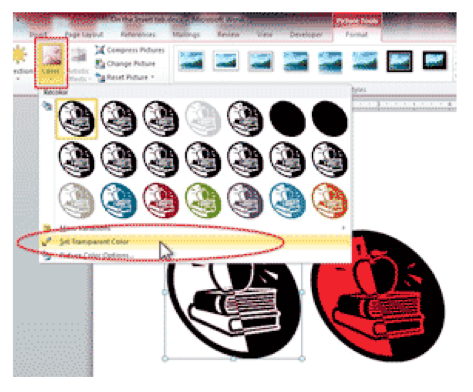
After inserting your graphic, click on the COLOR button, then on SET TRANSPARENT COLOR.

The cursor becomes a pen with a black angle. Click on the color in the picture to be removed, and all pixels of that color disappear.

While the removed color looks white, it’s actually transparent. If you print on colored paper, the paper color shines through. If you layer this graphic over another, the bottom one peeks through.
Set Transparent Color

Buy the Book

Microsoft Word 2010 Tips & TricksFor the complete collection of time-saving tips and tricks, buy my book, Microsoft Word 2010 Tips & Tricks. Available in eBook, iBook, Multi-touch, and paperback versions.


Picture of Alicia Katz Pollock
Alicia Katz Pollock
Recently named one of America's Top 50 Women in Accounting, Alicia is a leading expert in QuickBooks Online training with a Masters in Teaching and decades of business consulting. She offers a range of tailored resources from self-paced courses to personalized coaching. Known for her patience and commitment, Alicia simplifies QuickBooks for clients, helping them achieve their financial management goals with ease.
Picture of Alicia Katz Pollock
Alicia Katz Pollock
Recently named one of America's Top 50 Women in Accounting, Alicia is a leading expert in QuickBooks Online training with a Masters in Teaching and decades of business consulting. She offers a range of tailored resources from self-paced courses to personalized coaching. Known for her patience and commitment, Alicia simplifies QuickBooks for clients, helping them achieve their financial management goals with ease.
Don't forget to share this post.
Related Articles
1099s in QuickBooks Online
QuickBooks
Alicia Katz Pollock
Navigating 1099s in QuickBooks Online: Your Guide to Stress-Free Filing

Hey everyone, Alicia Katz Pollock from Royalwise.com here. It’s that time of year again – 1099 season! While this task can feel daunting, especially with ever-evolving regulations, QuickBooks Online (QBO) offers tools to help streamline the process. Intuit continues to revamp the 1099 filing process based on user feedback, making it even more efficient. This blog post will guide you

Read More »
How to Backup Your QuickBooks Online Data
QuickBooks
Alicia Katz Pollock
Baby Got Backups: Why and How to Backup Your QuickBooks Online Data

Hey everyone, Alicia Katz Pollock here from Royalwise.com! Today, I’m diving into a topic that often gets overlooked, but is absolutely crucial for any business using QuickBooks Online (QBO): how to backup your QuickBooks Online data. Even though your company file is stored in the cloud, relying solely on Intuit’s servers for protection leaves you vulnerable to accidental deletions, data

Read More »
Advanced Bookkeeping in QuickBooks Online
QuickBooks
Alicia Katz Pollock
Advanced Bookkeeping in QuickBooks Online: Moving Beyond the Basics

So, you’ve mastered the basics of QuickBooks Online (QBO). You can send invoices, categorize transactions, and run basic reports. That’s fantastic! But are you ready to take your skills to the next level with advanced bookkeeping in QuickBooks Online? This isn’t about clicking the right buttons; it’s about understanding the deeper bookkeeping principles and using QBO’s features creatively to get

Read More »