 How to Use an iPad as Second Monitor
Did you know you can use your iPad as a second monitor?
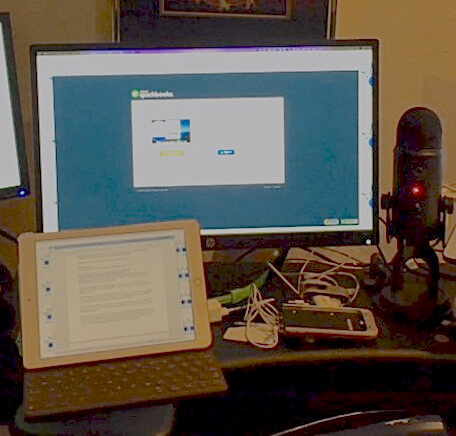
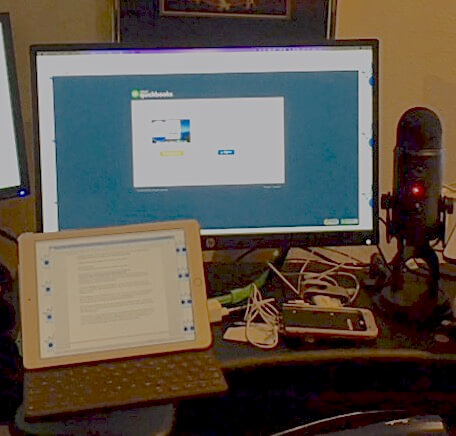
In my office, I use not just one, but THREE monitors. I frequently need to pull information from one program and move it into another. When I reconcile bank accounts, I like to use my bank’s activity screen for reference. When I screen share with clients, one screen holds shared content, and I show our video feed on my laptop so I can look my client in the eye. My third monitor holds my calendar, contacts, and email.
Jamie laughs at me for having 15 apps open simultaneously, but I use them all day long. Two monitors just weren’t enough anymore.
I finally found the perfect answer: use my iPad as an extra monitor!
iPad Mirroring Apps
There are several apps that will extend your screen to your iPad.
My favorite app for turning my iPad into a second monitor is AirDisplay, available for Mac on the iOS App Store. I downloaded the app onto my iPad, and visited getairdisplay.com to download the software to my computer. Once you install both devices, make sure they’re on the same wireless network.
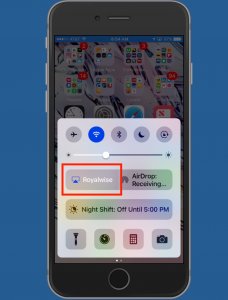
From there, AirDisplay works with AirPlay, the tool you use to send video to your TV or music to your speakers. Tap the AirPlay button in your control center, and you’ll see your iPad waiting to connect.
Use the settings to move the iPad to the left or right side of your computer. Slide the programs you want off your main screen and onto your iPad. An added bonus is that you now have a touch screen computer, although you may find some text quite small.
A second option is Duet. It works much like AirDisplay, although you have to plug your iPad into your computer. The Pro version unlocks tools for the Apple Pencil, including pressure and tilt sensitivity, so you can draw in your Apple Desktop apps. This is great news for artists and editors.
If you’re on a Mac running Parallels, check out Parallels Access. In addition to moving some open windows onto your iPad, it also gives you the ability to remote in to your computer from anywhere. The monthly subscription for this access is $19.99 a year for up to 5 computers.
Projecting Your iPad
Now let’s go the other way. We teach classes about using iPhones and iPads, and give keynote presentations showing off amazing business productivity apps. In order to demonstrate, we need to project the iPhone or iPad onto the screen for all to see.
Our go-to app in both these cases is AirParrot’s Reflector 2, available for both Mac and PC for $14.99. When it’s running, the computer shows up on the iPad’s AirPlay list. When we tap on it, a picture of my iPad or iPhone shows up in the center of my laptop.
Everything I do on my device shows up in real-time on my screen.
I can even choose whether or not to show a black or white iPad frame, or none at all!
Enjoy Your iPad as a Second Monitor!
Since you spent hundreds of dollars on your iPad already, using it to extend your monitor is great for occasional need without investing in extra monitors.
And if you have the need to show people what you are doing on your device, the wow-factor here is huge when you project your device onto your screen. Every time we teach iPhone apps classes, someone in the audience invites Jamie and Alicia to repeat the presentation for their employees or another networking group. It’s that cool!
More Apple and iPad Training
Want more Apple goodness? Check out our iPad training page and join our awesome Apple mentorship community by clicking below!