Days
Hours
Minutes
Seconds

QuickBooks Online

Complete Hands-On Training

Learn QuickBooks Online in 12 weeks with our hands-on step-by-step guided course.

How to Copy Formatting in Word

Find and Replace formatting in Microsoft Word

Table of Contents

How to Copy Formatting in Word

Once you’ve formatted your text, you may want to use that appearance later. You don’t need to go to each instance of text and apply the same font, size, color, and effects over and over.

We already covered how to remove formatting in Word, now let’s explore 3 ways you can copy the formatting in Microsoft Word.

Copy Formatting in MS Word Option #1 – Save as a Style

Styles allow you to apply a set of character and paragraph formatting to text in one step. They also allow you to modify one instance of that style and have the change cascade down throughout the document to the rest.

To save formatted text as a Style, right-click on it, highlight STYLE, and choose SAVE SELECTION AS A NEW QUICK STYLE. Give the Style a name. Your new Style now appears in the Styles gallery on the Home Tab.

Select the next text and click your new button in the GALLERY to instantly apply all the same formats.

To change the Style, make the modification to the text, right-click on the STYLE in the gallery, and choose UPDATE [NAME] TO MATCH SELECTION. All the samples of that Style in the document instantly take on the modification.
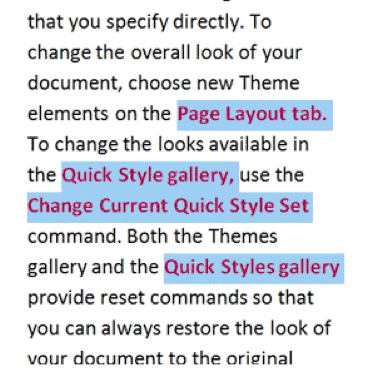
Save as a Style

Copy Microsoft Word Formatting Option #2 – Use the Format Painter

The Format Painter applies an entire collection of custom formats with just one click.

Click in the text that has the desired format (this is the hardest step to remember). On the HOME ribbon, click on the FORMAT PAINTER button on the left side in the CLIPBOARD group. Notice that the cursor now has a paintbrush attached to it.

Drag across the next text. It instantly takes on all the formatting from the first

If there are several places that need that formatting, don’t perform each formatting duplication individually. The Format Painter can apply the settings to several items, much like a painter dipping her brush into a color and then dabbing the canvas repeatedly.

Click on the formatted text; this time, instead of clicking one time on the FORMAT PAINTER button, click on it TWICE. The cursor has the same brush, but it also now has a + on it. Drag across as many locations as needed.

Be careful when in Format Painter mode—the special effects apply to any object clicked on.

When done duplicating the formatting, either click on the FORMAT PAINTER button again to turn it off, or simply press the ESC key in the upper left corner of the keyboard.
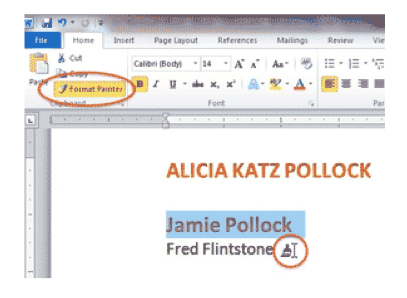
Use the Format Painter in Microsoft Word

Use Keyboard Shortcuts to Copy Microsoft Word Formatting (Option #3)

Click in text that has the formatting to replicate, and press CTRL-SHIFT-C. It’ll copy the formatting, but not the text itself.

Highlight the target text and press CTRL-SHIFT-V to paste the formatting.

More Microsoft Office Training Resources

Join our awesome MS Office Membership Community for unlimited access to all of our Microsoft Office training classes!

microsoft office training

Picture of Alicia Katz Pollock
Alicia Katz Pollock
Recently named one of America's Top 50 Women in Accounting, Alicia is a leading expert in QuickBooks Online training with a Masters in Teaching and decades of business consulting. She offers a range of tailored resources from self-paced courses to personalized coaching. Known for her patience and commitment, Alicia simplifies QuickBooks for clients, helping them achieve their financial management goals with ease.
Picture of Alicia Katz Pollock
Alicia Katz Pollock
Recently named one of America's Top 50 Women in Accounting, Alicia is a leading expert in QuickBooks Online training with a Masters in Teaching and decades of business consulting. She offers a range of tailored resources from self-paced courses to personalized coaching. Known for her patience and commitment, Alicia simplifies QuickBooks for clients, helping them achieve their financial management goals with ease.
Don't forget to share this post.
Related Articles
Episode 129 | Sales Tax Less Taxing | Blog Header | Royalwise
QuickBooks
Alicia Katz Pollock
Deep Dive: Let’s Make Sales Tax Less Taxing (Podcast)

Podcast Episode Overview Sales tax in QuickBooks Online is powerful — it tracks rates, recognizes tax holidays, and even handles economic nexus — but one wrong checkbox or a hidden shipping field can throw everything off. Alicia Katz Pollock breaks down the full sales tax workflow from setup to payment, revealing the three settings that have to line up perfectly

Read More »
Episode 128 | Intuit Connect | Blog Header | Royalwise
QuickBooks
Alicia Katz Pollock
We’re Still at Intuit Connect! (Podcast)

Podcast Episode Overview Alicia and Dan wrap up their three-part tour through the Intuit Connect Innovation Circle, covering everything from Intuit Enterprise Suite’s construction-focused upgrades to MailChimp’s QuickBooks integration and enhanced bill pay workflows. They discuss AI-powered project management tools, approval workflows that go seven layers deep, and how Credit Karma is now offering lending services directly within QuickBooks—plus why

Read More »
Episode 127 | Year-End QBO Cleanup | Blog Header | Royalwise
QuickBooks
Alicia Katz Pollock
Year-End QBO Cleanup (Podcast)

Podcast Episode Overview Alicia walks through her systematic approach to year-end cleanup, explaining why many business owners’ books contain errors that go unnoticed until tax time. She covers the most common trouble spots—from duplicate revenue in undeposited funds to improperly categorized transactions—and demonstrates how to use QuickBooks’ built-in tools like the Reclassify feature and Report Options to fix problems at

Read More »