Creating Random Numbers in Excel

Creating Random Numbers in Excel

Table of Contents

Have you ever needed to generate random dates in an Excel spreadsheet? You may not need it often, but when you do, this tip is quite handy. This is the kind of training we cover in our Advanced Excel class, and help you with in your office!

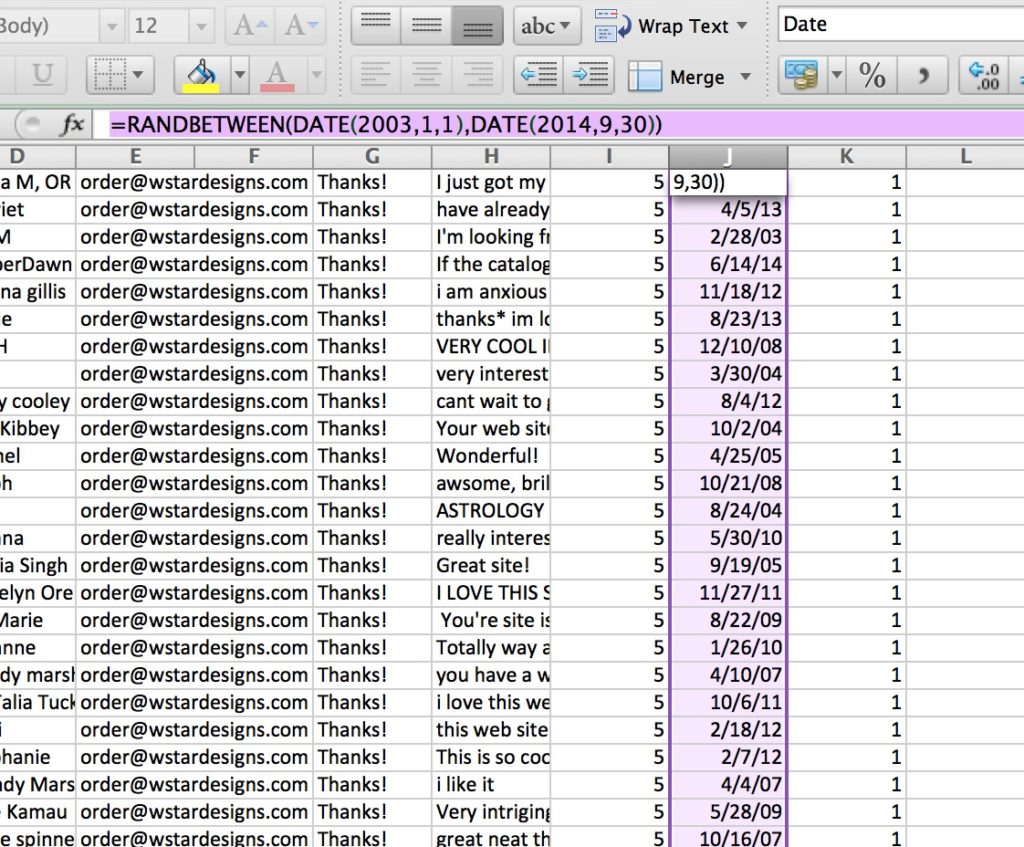
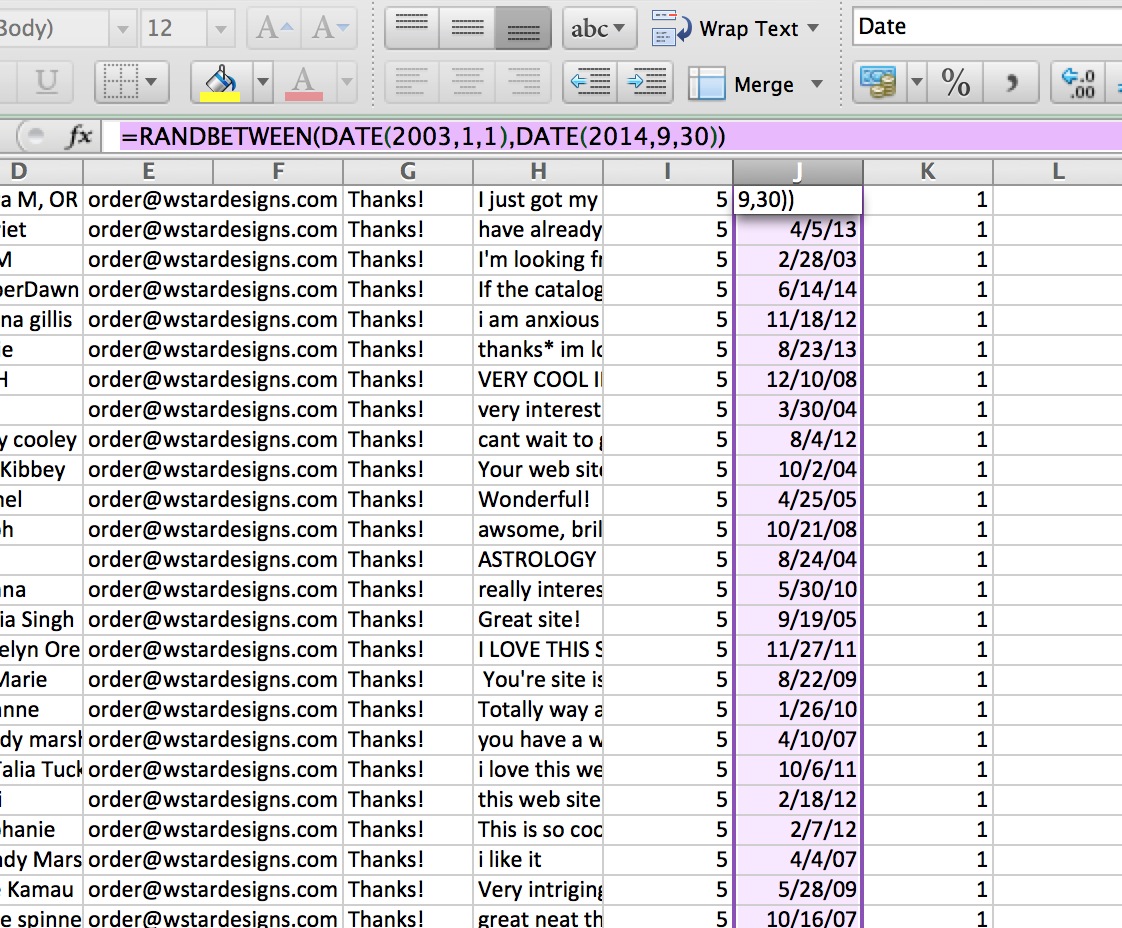
To create random numbers, use this formula:
=RANDBETWEEN(DATE(2003,1,1),DATE(2014,9,30))

The first argument, DATE(2003,1,1), is the low end of the range (earliest), and DATE(2014,9,30) was the high end of the range (most recent).

This creates a random date between 1/1/2003 and 9/30/14. Then, format the number so it appears as a “Date” to turn it into an understandable format.

Last, drag the AutoFill Handle (the little dot in the bottom corner of the cell) down to the bottom of my column to duplicate the formula.

If you want just a random number between two values, you would do the same thing, but replace the DATE(2003,1,1) with the low and high numbers.

Creating Random Numbers in Excel

Udemy Course Learn Excel in 3 Hours Flat


Need to learn Excel quickly? Check out Alicia’s online course, Learn Excel in 3 Hours Flat. For only $59 you get lifetime access to the course.

Picture of Alicia Katz Pollock
Alicia Katz Pollock
Recently named one of America's Top 50 Women in Accounting, Alicia is a leading expert in QuickBooks Online training with a Masters in Teaching and decades of business consulting. She offers a range of tailored resources from self-paced courses to personalized coaching. Known for her patience and commitment, Alicia simplifies QuickBooks for clients, helping them achieve their financial management goals with ease.
Picture of Alicia Katz Pollock
Alicia Katz Pollock
Recently named one of America's Top 50 Women in Accounting, Alicia is a leading expert in QuickBooks Online training with a Masters in Teaching and decades of business consulting. She offers a range of tailored resources from self-paced courses to personalized coaching. Known for her patience and commitment, Alicia simplifies QuickBooks for clients, helping them achieve their financial management goals with ease.
Don't forget to share this post.
Related Articles
1099s in QuickBooks Online
QuickBooks
Alicia Katz Pollock
Navigating 1099s in QuickBooks Online: Your Guide to Stress-Free Filing

Hey everyone, Alicia Katz Pollock from Royalwise.com here. It’s that time of year again – 1099 season! While this task can feel daunting, especially with ever-evolving regulations, QuickBooks Online (QBO) offers tools to help streamline the process. Intuit continues to revamp the 1099 filing process based on user feedback, making it even more efficient. This blog post will guide you

Read More »
How to Backup Your QuickBooks Online Data
QuickBooks
Alicia Katz Pollock
Baby Got Backups: Why and How to Backup Your QuickBooks Online Data

Hey everyone, Alicia Katz Pollock here from Royalwise.com! Today, I’m diving into a topic that often gets overlooked, but is absolutely crucial for any business using QuickBooks Online (QBO): how to backup your QuickBooks Online data. Even though your company file is stored in the cloud, relying solely on Intuit’s servers for protection leaves you vulnerable to accidental deletions, data

Read More »
Advanced Bookkeeping in QuickBooks Online
QuickBooks
Alicia Katz Pollock
Advanced Bookkeeping in QuickBooks Online: Moving Beyond the Basics

So, you’ve mastered the basics of QuickBooks Online (QBO). You can send invoices, categorize transactions, and run basic reports. That’s fantastic! But are you ready to take your skills to the next level with advanced bookkeeping in QuickBooks Online? This isn’t about clicking the right buttons; it’s about understanding the deeper bookkeeping principles and using QBO’s features creatively to get

Read More »