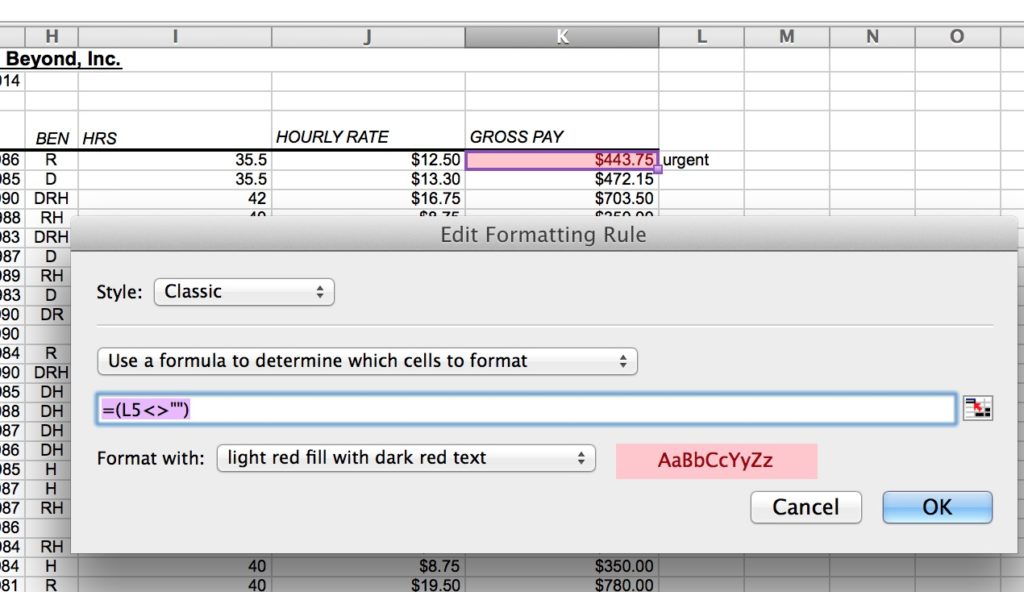
 Today I got an interesting question from a customer using Excel for Mac 2011. She wanted to know if she could use Conditional Formatting to color a cell based on the contents of another cell.
In her case, she has notes about employees written in a cell, and wanted to call attention to their salary if there were any notes for that person. To do this,
- Click on the first salary cell that you would color if the row has a note.
- Click on Conditional Formatting.
- Choose New Rule.
- Drop down the Style option and change it to Classic.
- Drop down the next option and select Use a formula to determine which cells to format.
- Enter the formula as =(N3<>””), with N3 being the first cell with a potential memo in it. This tells Excel to use the formatting if the cell does not equal null (is not empty).
- Edit the formatting to your liking (text color, fill color).
- Close the dialog box.
- Click back on the cell.
- Use the AutoFill Handle (the little square in the bottom right corner of the cell outline) to replicate the cell down the entire column.
- Any of the cells that have notes will now turn colors.
Using Conditional Formatting to automatically highlight cells based on criteria is a powerful way to create dynamic spreadsheets!

Need to learn Excel quickly? Check out Alicia’s online course, Learn Excel in 3 Hours Flat. For only $59 you get lifetime access to the course.