3 Ways to Insert the Date in Microsoft Word Docs

Inserting the date with autofill

Table of Contents

If you need to insert the date in your documents, save time by using these shortcuts instead of typing.
Inserting the date with autofill

Insert As You Type

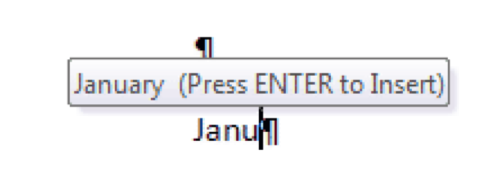
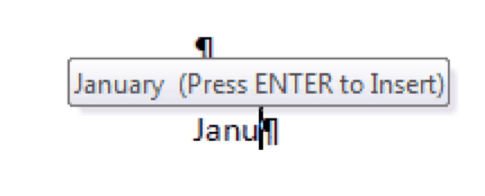
As you type the date in your document, Tooltips appear that predict what you’re going to type. Press Enter to accept the suggestion. For example, as you start typing “Janu”, Word suggests “January,” and you press Enter to insert it. If you keep typing the rest of the date, it may offer to autofill in the day and the year as well.
Inserting today's date and timeInsert Today’s Date and Time

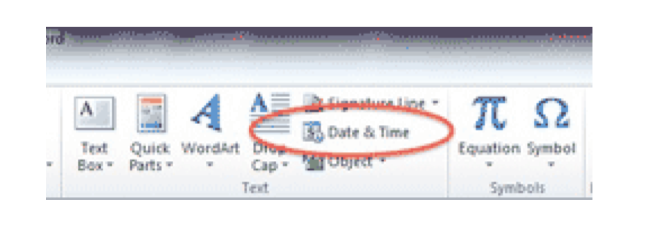
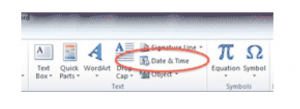
Click on the document where you want to put the date. Go to the INSERT RIBBON, and choose DATE AND TIME on the far right. Select how the date should look. To always use this style, click the SET AS DEFAULT button.
Insert the date with a keyboard shortcut

Use a Keyboard Shortcut

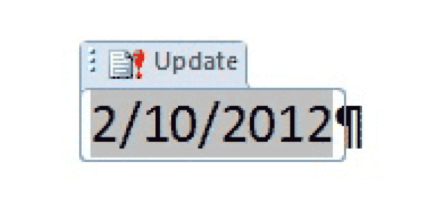
You can also insert the date with the keystroke ALT-SHIFT-D. This inserts the date as a field — click on it to see the field container. To change the format, use the instructions above to change the Default style, and reinsert the field. The field maintains the original date. Click on the UPDATE button to change it to today’s date.

Buy the Book
Microsoft Word 2010 Tips & TricksFor the complete collection of time-saving tips and tricks, buy my book, Microsoft Word 2010 Tips & Tricks. Available in eBook, iBook, Multi-touch, and paperback versions.




Picture of Alicia Katz Pollock
Alicia Katz Pollock
Recently named one of America's Top 50 Women in Accounting, Alicia is a leading expert in QuickBooks Online training with a Masters in Teaching and decades of business consulting. She offers a range of tailored resources from self-paced courses to personalized coaching. Known for her patience and commitment, Alicia simplifies QuickBooks for clients, helping them achieve their financial management goals with ease.
Picture of Alicia Katz Pollock
Alicia Katz Pollock
Recently named one of America's Top 50 Women in Accounting, Alicia is a leading expert in QuickBooks Online training with a Masters in Teaching and decades of business consulting. She offers a range of tailored resources from self-paced courses to personalized coaching. Known for her patience and commitment, Alicia simplifies QuickBooks for clients, helping them achieve their financial management goals with ease.
Don't forget to share this post.
Related Articles
QuickBooks
Payden Miller
Author’s new book receives a warm literary welcome.

Author’s new book receives a warm literary welcome. Readers’ Favorite announces the review of the Non-Fiction – Business/Finance book “QuickBooks Online Bootcamp” by Alicia Katz Pollock, currently available at http://www.amazon.com/gp/product/0989399265. Readers’ Favorite is one of the largest book review and award contest sites on the internet. They have earned the respect of renowned publishers like Random House, Simon & Schuster,

Read More »
QBO Bootcamp Press Release | Blog Header Image | Royalwise
QuickBooks
Payden Miller
How QBO Bootcamp is Changing the Game for Small Business Owners

If you’ve ever felt overwhelmed by your business finances, you’re not alone. Managing books, keeping up with tax prep, and understanding accounting software can be daunting—especially for small business owners. But a new book by Alicia Katz Pollock, QBO Bootcamp: From Setup to Tax Time, is here to help—and it’s already receiving glowing praise. A 5-Star Guide That Makes Finance Manageable

Read More »
Two Accounting Apps | Blog Post Header Image | Royalwise
QuickBooks
Brandon Mateika
When Two Accounting Apps Listen to Their Customers (And Actually Do Something About It)

Picture this: It’s 2021 at ‘Appy Camp, and Ben Stein from Keeper is standing at a bar, drink ticket in hand, ready to exchange it for a well-deserved cocktail after a long day of conference sessions. But when Alicia Katz Pollock rushes past—bass guitar case slung over her shoulder, racing to join the evening’s music circle around the fire—and tosses him

Read More »