
 Now that Safari 7 has been out for a while, I’m seeing a lot of people confused by the changes in the new version. The top 3 questions I hear are:
- What happened to my Google Search oval?
- Where did my homepage go? A new window or new tab takes me to Top Sites. Why are there 12 sites now?
- The Show Bookmarks icon and menu option opens a drawer on the left side of my window instead of taking me to my Bookmarks Editor. Now that I’m in this drawer, how do I edit a URL or the name of a bookmark?
Google Searching
Safari now has an “Omni-Bar”, combining web address URLs and Google’s search bar into one place. Type in a website address or some search terms and the “Omni-Bar”will know how to handle it for you. For this reason, there’s no reason to keep Google as your homepage anymore!
Top Sites
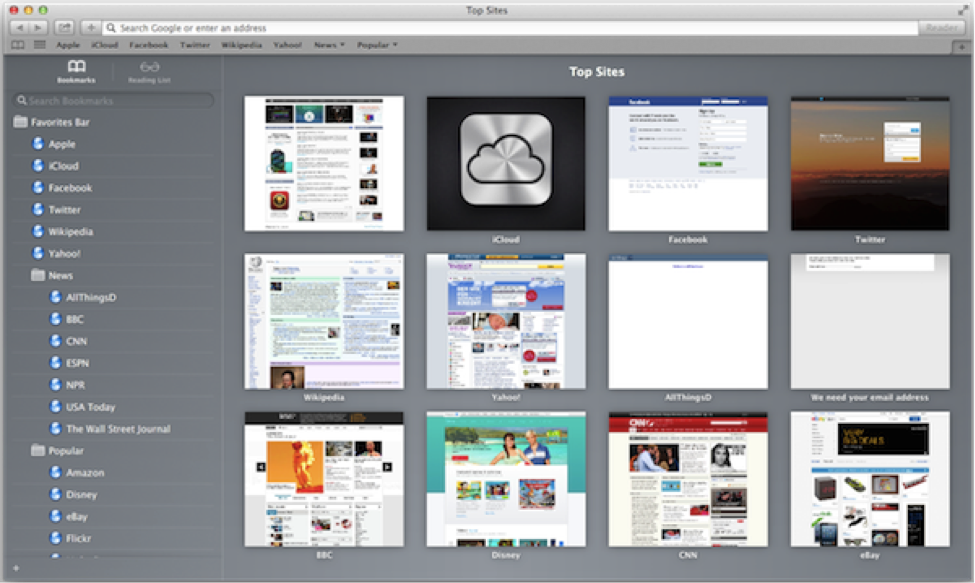
Top Sites is a dynamic graphic view of the websites you visit most. The more often you go to a page, the higher it will appear on this grid. That way, you can navigate to your most-used web pages in just one click.
Here are a few tips that may make the Top Sites area more practical:
Use the “thumbtack” feature so the site does not move around
Because the Top Sites area changes with your surfing habits, the websites self-regulate, with the most views and most recent first. But you can “tack” your favorites in the positions of your choice!
Hover your mouse over any of the squares and you will see two icons in the top left corner: an X and a thumbtack. The X will remove this site from the view completely. The thumbtack makes sure it stays in that exact spot.
You can also drag sites around to arrange them into the order you prefer. Also, if you add a site to the Top Sites area manually through the Add Bookmark menu option, it will be thumb-tacked automatically.
Change the number of Top Sites from the default 12 down to 6 (or up to 24)
In the Safari menu, open the Preferences pane. Under the General tab, look for the Top Sites shows: option.
For my older clients, 6 sites is a lot more comfortable, especially after we have used thumbtack to make sure their more visited websites don’t move around or disappear. My power users prefer 24 sites so everything they need is all in one place.
View your Homepage when you open a new Window or Tab
To change this setting, go to the Safari menu, and click on Preferences. On the General tab, look for the New Window opens: and New Tab opens: options.
But, before you leap in and make this change, give Top Sites a try and see if it takes you where you want to go faster than ever before!
Bookmarks
Here are a few tips to help with Bookmarks:
Edit, rename and delete Bookmarks in the Show Bookmarks drawer
Show Bookmarks by clicking the Book icon on the left of the Bookmark Bar. Control Click (or two-finger click on your Trackpad) on any of the bookmarks and in the pop-up menu you will find all of the options you are looking for, including Edit Address, Rename Bookmark, and Delete. You can also drag them around to put them in folders and rearrange them.
Use the Bookmark Editor
It took me a while to even notice this was there, but in the Bookmarks menu, click on Edit Bookmarks and you will be taken to a bookmark editing tool that is similar to the one you were used to. To get out of the Bookmark Editor, head back to the Bookmarks menu and click on Hide Bookmarks Editor.
Conclusion
Change can be difficult. And, when you did not ask for it, it can be downright frustrating. But both of these changes have their advantages, and if you can’t adapt and adopt, then you can revert to the old way with a few clicks of the menu. Happy surfing!
Find this tip helpful? Let us know in the comments. We’d love to hear from you!