Dictation on Mac
Of all the new features that Apple has introduced lately, Dictation is one of my favorites. It’s a new technology and has some kinks to work out, but all in all, I think it’s a great addition to OSX.
Using dictation, you can literately dictate anywhere you can type. Most people do not believe me when I first say this in my Mac training classes, so I have to repeat myself: ANYWHERE YOU CAN TYPE! This means emails, Messages, Pages, Word, even in a Google search.
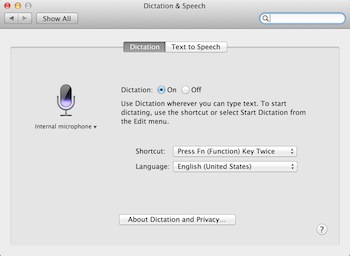
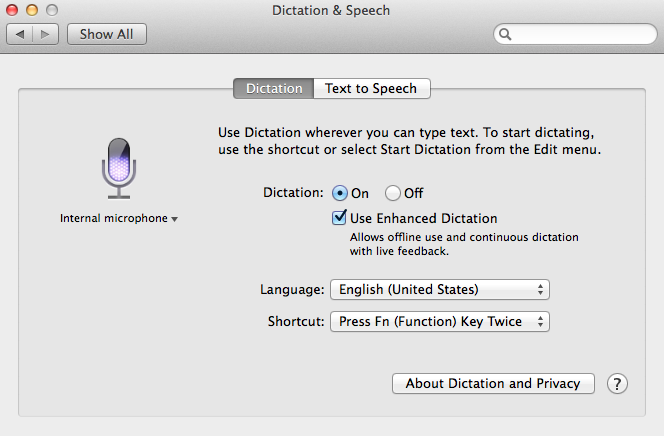 Dictation is turned off by default, so you have to get it started by going into your System Preferences and clicking the Dictation and Speech button. Once you click the On radio button next to Dictation, you’re ready to go. Look for the bouncing purple-textured microphone on the left to confirm that your internal microphone is working. If your computer does not have an internal mic, then you will have to attach an external microphone to your computer.
To activate the dictation feature, you will have to use the shortcut defined in the System Preferences window. The default is to press the “Fn” or function key twice. On short Apple keyboards, this key is in the bottom left corner. If you have an extended keyboard with a numerical keypad, you can find the “Fn” key in the middle zone. If you like, you can change this trigger to one of the Command keys, or a customized option.
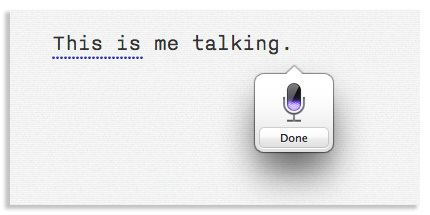 When you press Fn – Fn, you will see a small microphone appear and hear a ding-ding sound effect. After you hear the sound effect, you can begin dictating. Click on the Done button when you are finished.
If you are using OSX 10.7 Lion or OSX 10.8 Mountain Lion, you need to be connected to the Internet for dictation to work. Therefore, you can only dictate a sentence or two at a time, since it has to be sent to the Apple servers for “translation” and then sent back as text. If you talk too long, the process will fail and you’ll have to try again.
Apple’s new operating system, OSX 10.9 Mavericks, brings enhanced dictation to the table. With new enhanced dictation, you don’t need to be connected to the Internet for the translation to work. It also includes continuous dictation so there is no time limit on how long you can talk. Your words appear onscreen as you speak, so you can see exactly what you’ve said without having to stop and wait. It also allows you to pause and gather your thoughts and then continue speaking.
Mac Dictation & Auto Correct
Be aware that dictation will constantly auto-correct for you. Once the text shows up, look for blue dotted underlines. These words and phrases have been auto-corrected, and may or may not read exactly like what you said. The quality of the transcription depends on how clearly you speak, and your accent. Many people have sent embarrassing messages by not proofing them before sending. Do not end up on BuzzFeed’s latest list of 30 Most Hilarious Autocorrects!
You do have to state your punctuation to get it to show. In other words, say “period” at the end of a sentence, “comma” where you want one, and “question mark” after a question. To start a new paragraph, say “new paragraph.”
Once you get used to using dictation, it’s going to be hard to get back to typing yourself. You’ll get spoiled! But for all of you who don’t know how to type, or have physical limitations, the new dictation feature is heaven-sent!
Mac Training & More!
Want more Mac training & support? Join our incredibly-popular Apple mentorship program for exclusive and unlimited access to all of our training courses, videos, classes, community and more!