Let’s say you just finished typing your novel in Microsoft Word and decided you want to change the main character’s name from Michael to Sonny. Your publisher also wants you to use Paragraph Spacing Below to separate your paragraphs, instead of pressing Enter twice! The thought of having to scan through all 300 pages of your document to make the changes is almost enough for you to learn to love the name Michael (and choose to publish online instead of print), but you pour a cup of black coffee and start the correction process. Don’t! Instead, use Find and Replace to save time and frustration.
Open Find and Replace
There are 3 ways to open Find in Microsoft Word for PC:
- On the HOME ribbon, click the FIND button on the far right or press CTRL-F. This opens the Navigation Pane. If you select a word first, that word automatically appears in the Search box.
- Click on the DROP-DOWN ARROW next to the FIND button on the HOME ribbon and choose ADVANCED FIND. This opens up the Find dialog box.
- Click on the PAGE: button on the Status Bar. Then click on the FIND Tab in the dialog box.
and two ways to open Replace.
- On the HOME ribbon, click the REPLACE button on the far right, or press CTRL-H. This opens the Replace dialog box. If you select a word first, that word automatically appears in the Find what: box.
- Click on the PAGE: button on the Status Bar. Click on the REPLACE Tab in the dialog box.
Find and Replace
To simply find a word or a phrase, it’s easiest to use the NAVIGATION PANE. You can also use the FIND NEXT button in the dialog box to skim through occurrences.
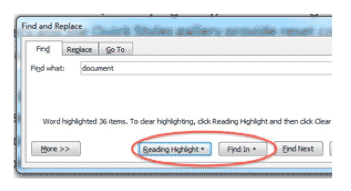
In the Advanced Find dialog box, click on the READING HIGHLIGHT button, then HIGHLIGHT ALL to put a yellow highlight around all instances of the word.
Use the FIND IN button to search a pre-selected segment, or choose MAIN DOCUMENT to search the whole file.
To repeat a find, press SHIFT-F4. To repeat Find after closing the Find & Replace window, press ALT+CTRL+Y.
When using Replace, either REPLACE the word one at a time, or click REPLACE ALL to do all instances at once. That will allow Michael to become Sonny in a matter of seconds.

Advanced Search Options
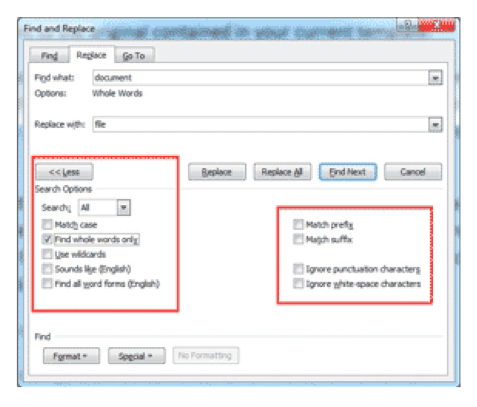
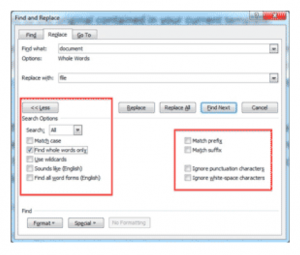
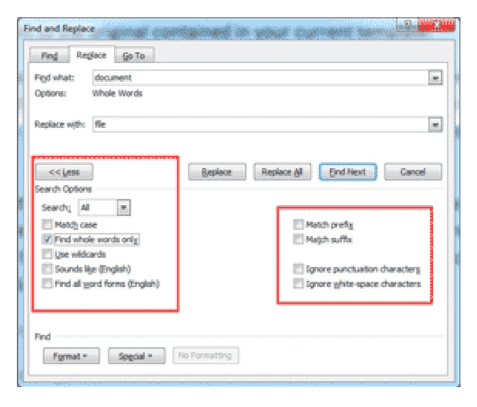
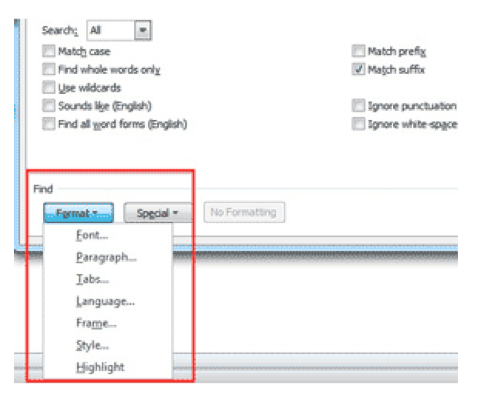
Find and Replace also allows for more complicated replacements, including partial words, spacing, paragraphs, and even capitalization. To Find and Replace partial words, you need to refine your Search parameters. To open Search Options, click on the MORE >> button.
- The SEARCH: DROP-DOWN allows you to search upwards, downwards, or the whole document.
- MATCH CASE matches lowercase and capital letters.
- FIND WHOLE WORDS ONLY prevents partial letter matches. For example, if youtried to replace THE with A, but you didn’t click this option, “theater” becomes “aater”and “then” becomes “an”.
- USE WILDCARDS allows for partial matches. Type the letters and use an * forthe rest (Shift-8). For example, if you Use Wildcards for “typ*”, it matches “type,” “typing,” and “typed.”
- SOUNDS LIKE finds words that sound the same, like “to,” “two,” and “two.”
- FIND ALL WORD FORMS locates all verb tenses. If you check this box and searchfor “choose,” it also locates “choosing” and “chosen.”
- MATCH PREFIX AND SUFFIX works in conjunction with the other options to only find matches that share the same beginning or ending.
- IGNORE PUNCTUATION AND WHITESPACE ignores differences in hyphensand spacing.
 What about Formatting?
Find and Replace is not limited to content. You can also use Find and Replace for formatting, including boldface, font color, paragraph formatting (like centering or line spacing), styles, and much more.
For example, you could find all text that’s bold and red, and replace it with blue italics. Or if you’d manually formatted section headers as 16-pt Bold Arial, you could replace them all at once with the Heading 1 style.
Advanced Tip: Find and Replace Special Characters
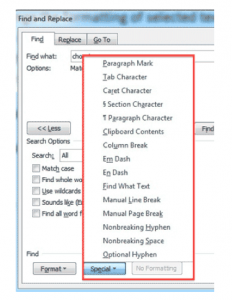
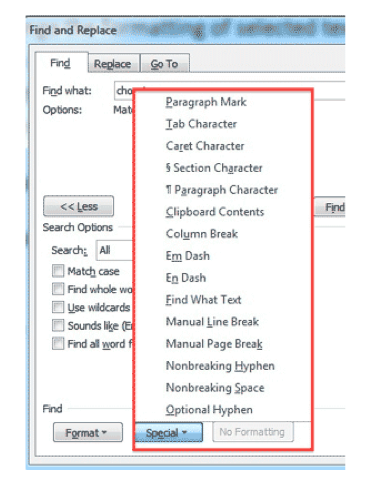
If a document was crafted using Enter to create extra space between paragraphs, and the Tab key to indent paragraphs, I like to reformat the document using proper word processing techniques of Paragraph Spacing and First Line Indent. Instead of having to go through the entire file deleting ¶ marks and tabs, I use Find and Replace Special Characters.
In the Find box, click the SPECIAL drop-down and choose PARAGRAPH twice, then TAB CHARACTER (it will show ^p^p^t).
In the REPLACE box, choose PARAGRAPH, then REPLACE ALL. The extra ¶ will disappear, as will the Tab. Then the Paragraph Spacing and First Line Indent settings can take over.
 Buy the Book
 For the complete collection of time-saving tips and tricks, buy my book, Microsoft Word 2010 Tips & Tricks. Available in eBook, iBook, Multi-touch, and paperback versions.